
Table of Contents:
1. How to Share Documents Securely from the Client Card
2. How to Share Forms and Treatment Notes Securely from the Client Card
3. How to Share Letters Securely from the Client Card
4. How to Share Prescriptions Securely from the Client Card
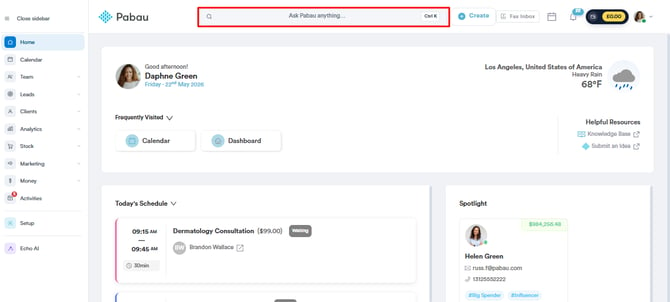
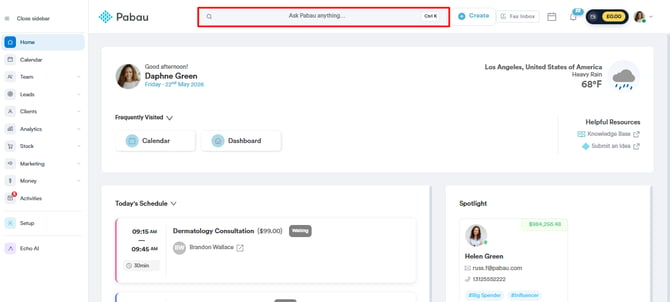
Start by logging in to your Pabau account and use the search bar located at the top of the screen to search for the client with whom you wish to share a document.
Step 2: Access Client Card and Documents
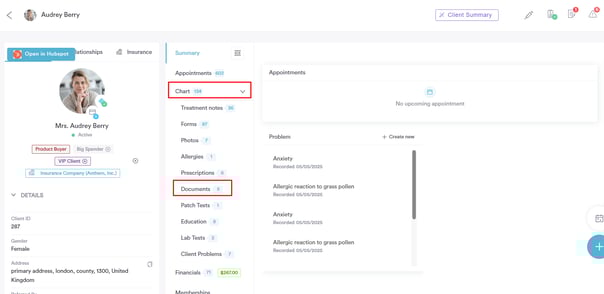
In the client card, click on the Chart/EMR tab, and from the dropdown menu options, select "Documents."
Step 3: Locate the Document You Want to Share
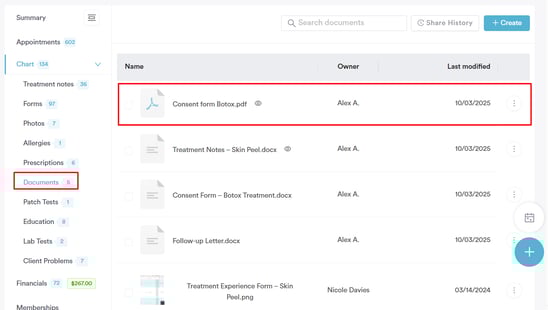
In the ''Documents section'' of the client card, find the file you wish to share.
Click the three dots next to the document to view the available actions, then choose ''Secure Share'' to begin securely sending the document through the Client Portal.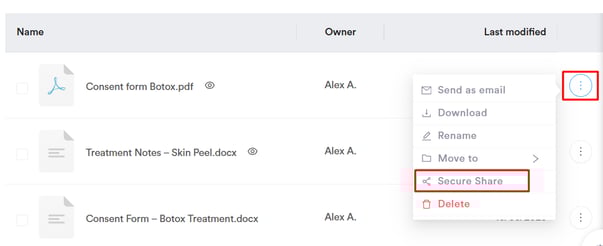
Step 4: Share the Document Securely
Once you click ''Secure Share'', a panel will open on the right-hand side of the screen.
From here, you can review, customize, and send your documents securely to the client through the Client Portal.
Here’s what each section of the Secure Share panel includes:
-
Shared Documents
At the top of the panel, you’ll see the total number of documents that have been shared with the client.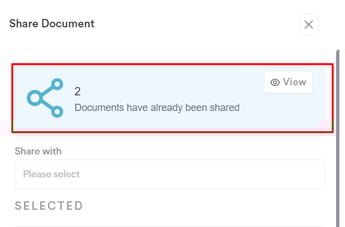
If you’d like to review the details, click the ''View'' button to open the ''Share History''. This will display which documents were shared, when they were sent, and which staff member shared them.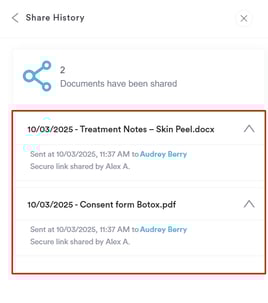
-
Recipient Details
In the ''Share with'' field, select who will receive the shared documents, typically the client, but you can also choose to share them with an insurance company or another authorized contact.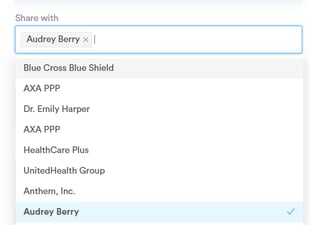
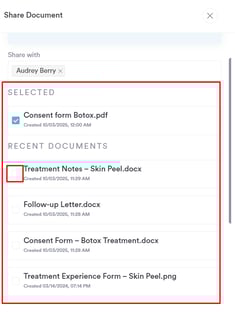
- Documents Selected
Here, you can view the document you’ve chosen to share. If you’d like to include additional documents, simply select them from the list to add them before sending.
-
Share via SMS
You can enable the SMS toggle if you’d like the client to receive the secure link via text message in addition to email. To use this option, ensure that Secure Share via SMS is enabled in your ''Client Notifications'' settings.
-
Email Delivery
The shared document will be sent to the client via email. You can preview the email template by clicking the link displayed in this section.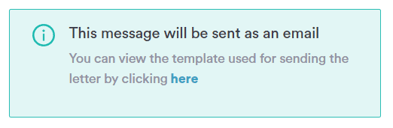
The template can also be customised in ''Client Notifications'' to better suit your clinic’s style and messaging.
-
Client Portal Note
Use this field to add a personalized message for your client. This note will appear alongside the shared document in the Client Portal, providing context or any additional information your client may need.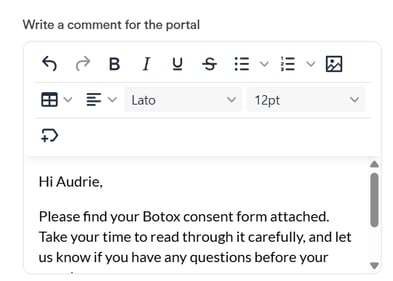
-
Password Protection
The Password protect option is enabled by default to keep your documents secure. When enabled, an access PIN is automatically included in the email sent to the recipient. Every time the client refreshes their page, they will need to enter the secure access code
-
Finalize & Send
Once you have reviewed all details, click ''Share Securely via Email'' to send the document to your client. If you decide not to proceed, click Close - no information will be saved or sent.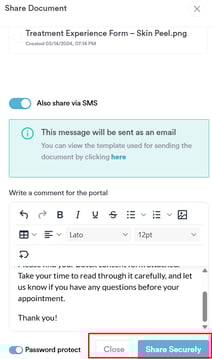
Step 5: How the Client Will Access the Document
After sharing the document, your client will receive an email containing the shared files along with the access PIN.
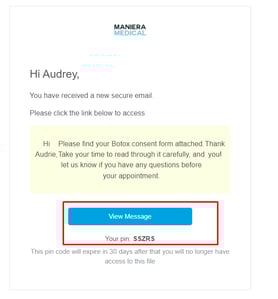
To open the document in the Client Portal, the client must enter this PIN, ensuring that only the intended recipient can view the documents.
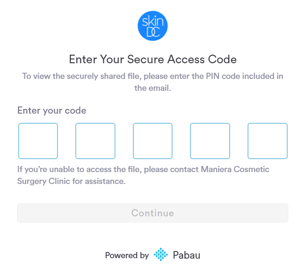
After entering the PIN, the client will be redirected to the Client Portal, where they can securely view and open the document.
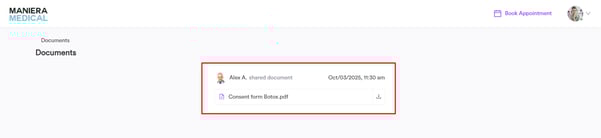
By following these steps, you can securely share documents with your clients, ensuring they receive the necessary information safely and efficiently.
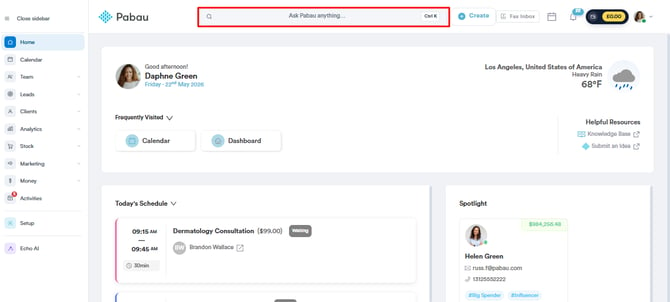
Start by logging in to your Pabau account and use the search bar located at the top of the screen to search for the client with whom you wish to share a form.
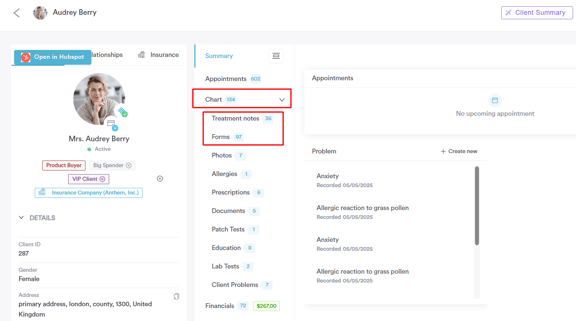
Step 2: Access Client Card and Forms
From the dropdown menu, select either:
-
Forms - to share medical or administrative forms
-
Treatment Notes - to share clinical notes or progress summaries
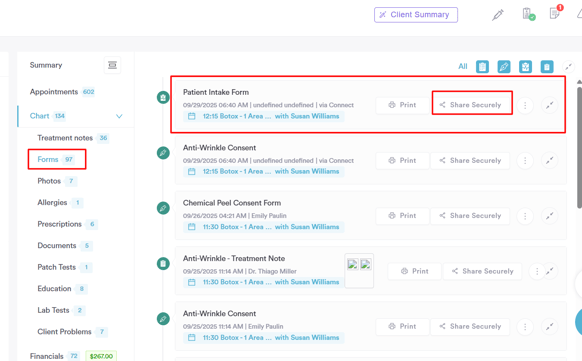
Step 3: Locate the Form or Treatment Note to Share
In the selected section, browse the list and find the specific form or treatment note you want to share. Next to each item, you’ll see a "Share Securely" button.
NOTE: If you have HIPAA compliance support enabled, you will not be able to share any forms with the client.
Step 4: Share the Form/Treatment Note Securely
Once you click ''Secure Share'', a panel will open on the right-hand side of the screen.
From here, you can review, customize, and send your forms securely to the client through the Client Portal.
Here’s what each section of the Secure Share panel includes:
-
Shared Forms
At the top of the panel, you’ll see the total number of forms that have been shared with the client.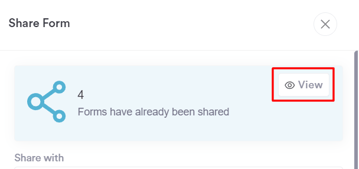
If you’d like to review the details, click the ''View'' button to open the ''Share History''. This will display which forms were shared, when they were sent, and which staff member shared them.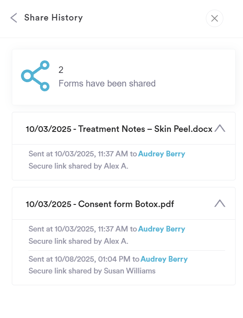
-
Recipient Details
In the ''Share with'' field, select who will receive the shared forms, typically the client, but you can also choose to share them with an insurance company or another authorized contact.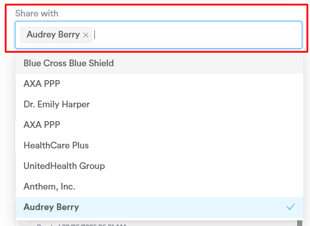
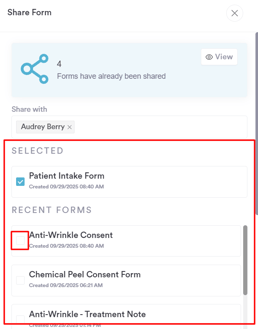
- Forms Selected
Here, you can view the form you’ve chosen to share. If you’d like to include additional forms, simply select them from the list to add them before sending.
-
Share via SMS
You can enable the SMS toggle if you’d like the client to receive the secure link via text message in addition to email. To use this option, ensure that Secure Share via SMS is enabled in your ''Client Notifications'' settings.
-
Email Delivery
The shared forms will be sent to the client via email. You can preview the email template by clicking the link displayed in this section.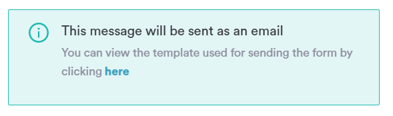
The template can also be customised in ''Client Notifications'' to better suit your clinic’s style and messaging.
-
Client Portal Note
Use this field to add a personalized message for your client. This note will appear alongside the shared forms in the Client Portal, providing context or any additional information your client may need.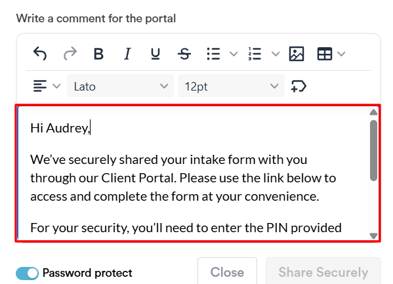
-
Password Protection
The Password protect option is enabled by default to keep your forms secure. When enabled, an access PIN is automatically included in the email sent to the recipient. The recipient must enter this PIN to open the shared forms, and it remains valid for 30 days, ensuring that only the intended person can access the files.
-
Finalize & Send
Once you have reviewed all details, click ''Share Securely via Email'' to send the forms to your client. If you decide not to proceed, click Close - no information will be saved or sent.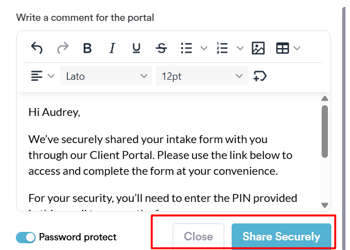
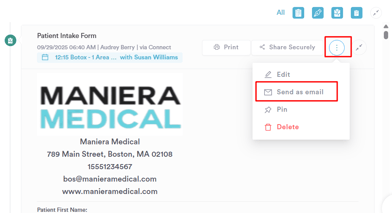
Clients can also send the form to the client via email by clicking the three dots next to the form and selecting the "Send as Email" option. In this case, the form will be delivered as a PDF attachment directly to the client’s inbox.
Step 5: How the Client Will Access the Form
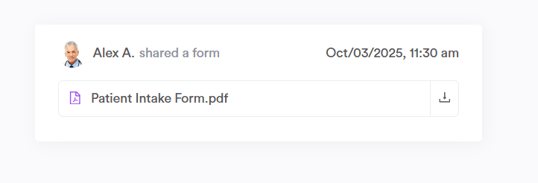
After sharing the forms, your client will receive an email containing the shared files along with the access PIN.
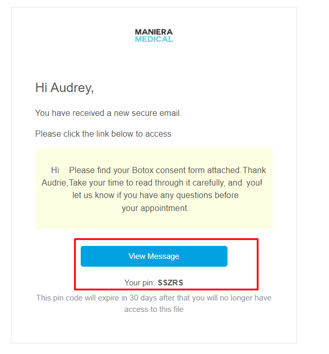
To open the form in the Client Portal, the client must enter this PIN, ensuring that only the intended recipient can view the forms.
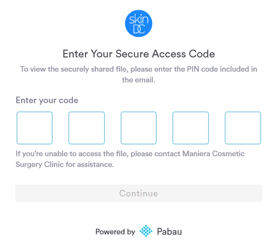
After entering the PIN, the client will be redirected to the Client Portal, where they can securely view and open the form.
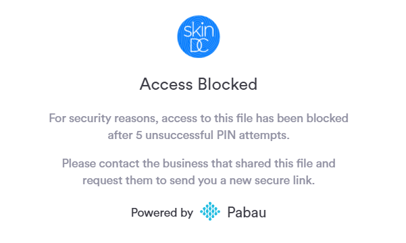
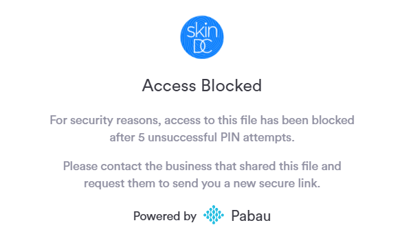
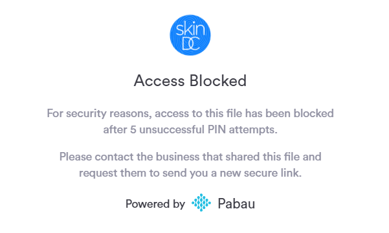
If a wrong PIN is entered 5 times, the client will see an error message. To resolve this, a staff member must resend the letter via a new secure link.
By following these steps, you can securely share forms and treatment notes with your clients, ensuring they receive the necessary information safely and efficiently.
Step 1: Navigate to the Client Card
Start by logging in to your Pabau account and use the search bar located at the top of the screen to search for the client with whom you wish to share a letter.
Step 2: Access Letters
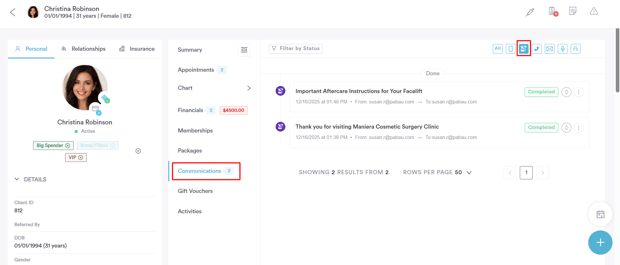
In the client card, navigate to the Communications tab, and from there, go to the Letters section. Here, you can select the letter you would like to share with the client.
NOTE: If the letter you wish to share is not listed, you can create a new letter from scratch or select an existing template. After saving the letter, return to this section to choose it for secure sharing.
To learn how to create a letter from scratch, please refer to this article.
Step 3: Locate the Letter You Want to Share
In the ''Letters section'' of the client card, find the letter you wish to share.
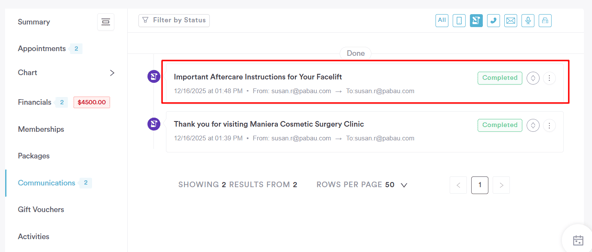
Click the three dots next to the letter to view the available actions, then choose ''Secure Share'' to begin securely sending the letter through the Client Portal.
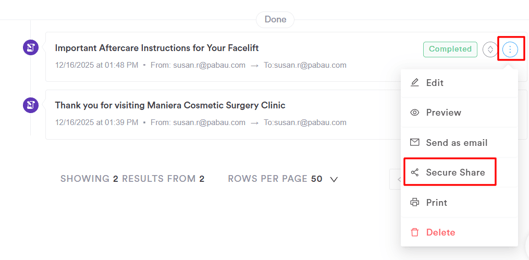
Step 4: Share the Letter Securely
Once you click ''Secure Share'', a panel will open on the right-hand side of the screen.
From here, you can review, customize, and send your letters securely to the client through the Client Portal.
Here’s what each section of the Secure Share panel includes:
-
Shared Letters
At the top of the panel, you’ll see the total number of letters that have been shared with the client.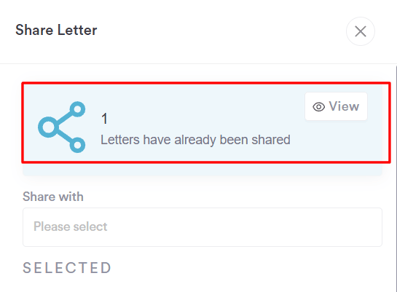
If you’d like to review the details, click the ''View'' button to open the ''Share History''. This will display which letters were shared, when they were sent, and which staff member shared them.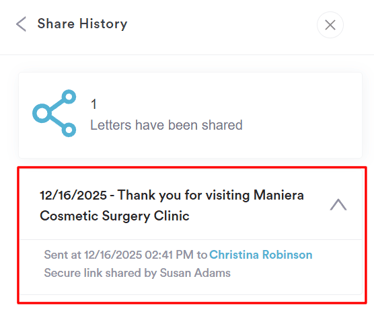
- Recipient Details
In the ''Share with'' field, select who will receive the shared letters, typically the client, but you can also choose to share them with an insurance company or another authorized contact.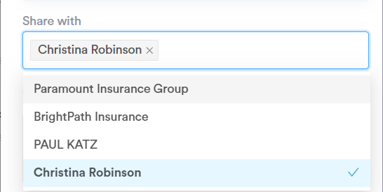
- Letters Selected
Here, you can view the letter you’ve chosen to share. If you’d like to include additional letters, simply select them from the list to add them before sending.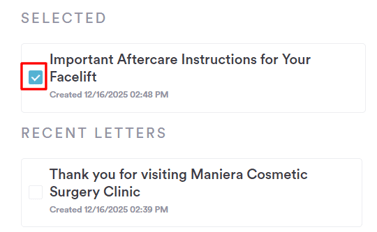
- Share via SMS
You can enable the SMS toggle if you’d like the client to receive the secure link via text message in addition to email. To use this option, ensure that Secure Share via SMS is enabled in your ''Client Notifications'' settings.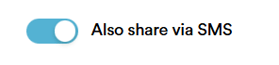
- Email Delivery
The shared letter will be sent to the client via email. You can preview the email template by clicking the link displayed in this section.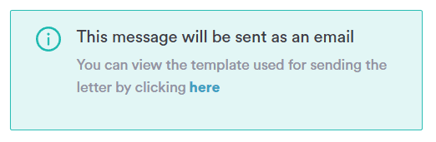
The template can also be customised in ''Client Notifications'' to better suit your clinic’s style and messaging. - Client Portal Note
Use this field to add a personalized message for your client. This note will appear alongside the shared letter in the Client Portal, providing context or any additional information your client may need.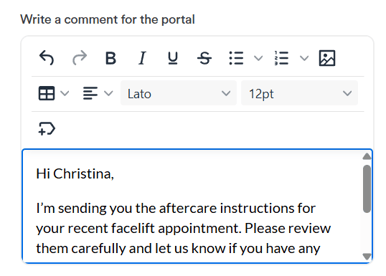
- Password Protection
The Password protect option is enabled by default to keep your letters secure. When enabled, an access PIN is automatically included in the email sent to the recipient. Every time the client refreshes their page, they will need to enter the secure access code. - Finalize & Send
Once you have reviewed all details, click ''Share Securely via Email'' to send the letter to your client. If you decide not to proceed, click Close - no information will be saved or sent.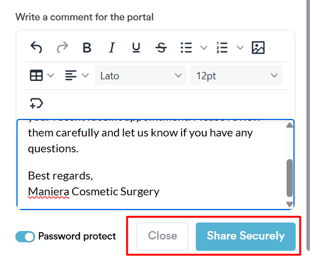
Step 5: How the Client Will Access the Letter
After sharing the letter, your client will receive an email containing the shared files along with the access PIN.
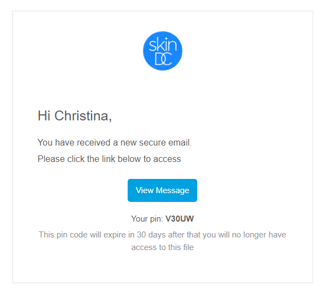
To open the letter in the Client Portal, the client must enter this PIN, ensuring that only the intended recipient can view the letter.
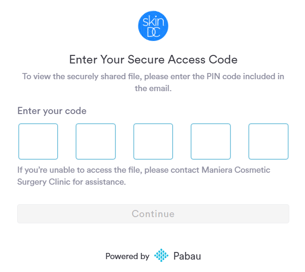
After entering the PIN, the client will be redirected to the Client Portal, where they can securely view and open the letter.
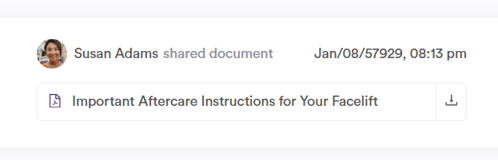
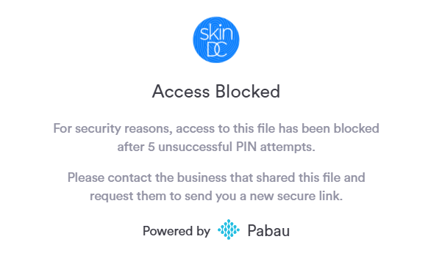
If a wrong PIN is entered 5 times, the client will see an error message. To resolve this, a staff member must resend the letter via a new secure link.
By following these steps, you can securely share letters with your clients, ensuring they receive the necessary information safely and efficiently.
How to Share Prescriptions Securely from the Client Card
Step 1: Navigate to the Client Card
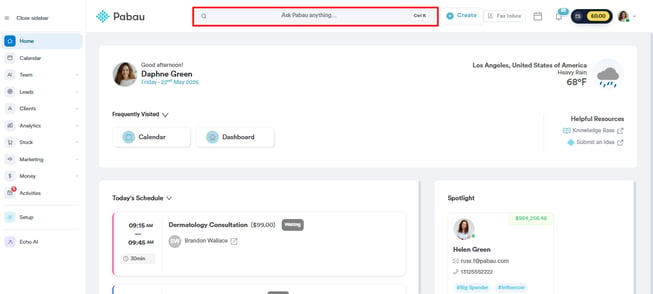
Start by logging in to your Pabau account and use the search bar at the top of the screen to find the client whose prescription you wish to share.
Step 2: Access Prescriptions
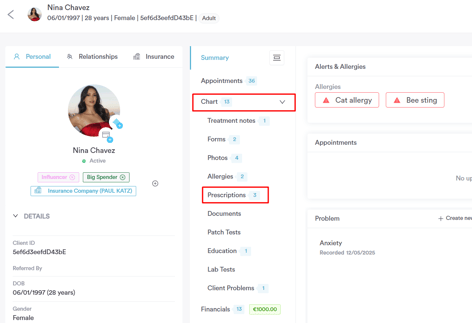
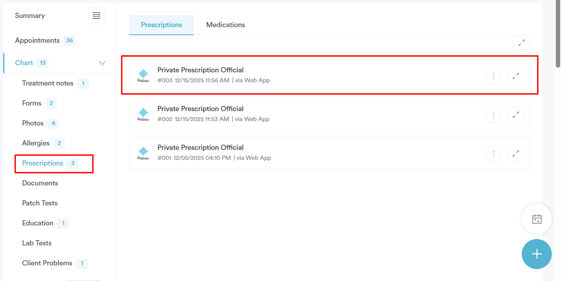
Within the client card, navigate to the Chart tab, then select Prescriptions. Here, you’ll see a list of prescriptions for the client and can choose which one you want to share.
Step 3: Locate the Prescription You Want to Share
In the Prescriptions section of the client card, find the prescription you wish to share.
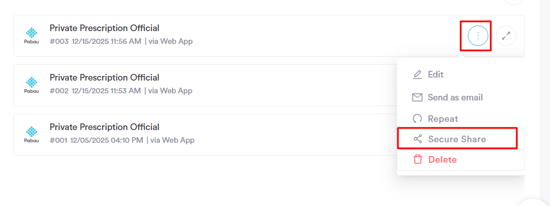
Click the three dots next to the prescription to view available actions, then select Secure Share to begin sending it securely through the Client Portal.
Step 4: Share the Prescription Securely
After clicking Secure Share, a panel will open on the right-hand side of the screen. From here, you can review, customize, and send prescriptions securely to the client.
Shared Prescriptions
At the top, you’ll see the total number of prescriptions shared with this client.
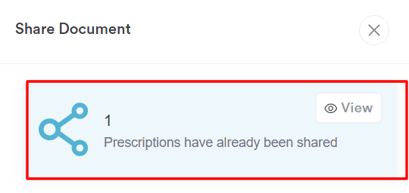
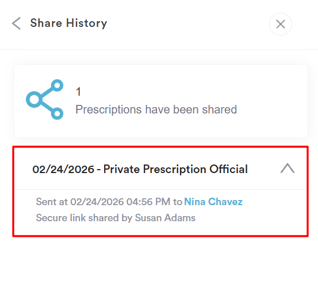
Click View to open the Share History, showing which prescriptions were shared, when, and by which staff member.
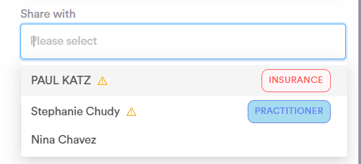
Recipient Details
Use the Share with field to select who will receive the prescription — usually the client, but you can also share with an authorized contact, such as an insurance company.
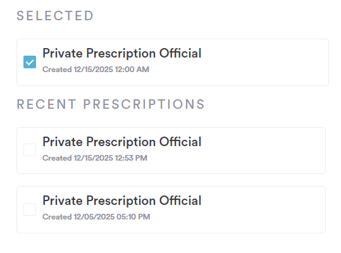
Prescriptions Selected
This area shows the prescriptions you’ve chosen to share. You can add multiple prescriptions before sending if needed.
Share via SMS
Enable the SMS toggle if you want the client to receive a secure link via text message. Ensure that Secure Share via SMS is enabled in your Client Notifications settings.
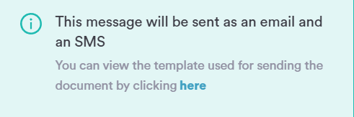
Email Delivery
The prescription will be sent via email. Preview the email template or customize it in Client Notifications to match your clinic’s style.
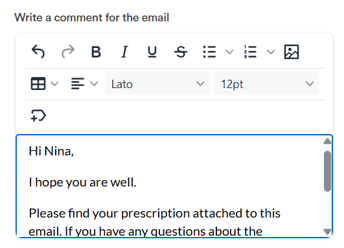
Client Portal Note
Add a personalized note to appear alongside the prescription in the Client Portal. This helps provide context or additional instructions for the client.
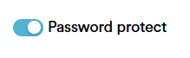
Password Protection
The Password protect option is enabled by default to keep your documents secure. When enabled, an access PIN is automatically included in the email sent to the recipient. Every time the client refreshes their page, they will need to enter the secure access code.
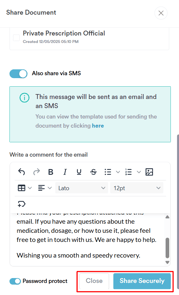
Finalize & Send
After reviewing all details, click ''Share Securely via Email'' to send the prescription. Click ''Close'' to cancel — no information will be sent.
Step 5: How the Client Will Access the Prescription
After sharing the prescription, your client will receive an email containing the shared files along with the access PIN.
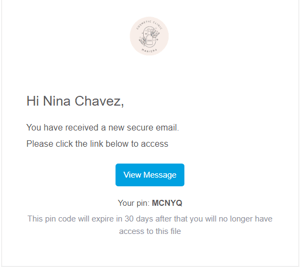
To open the prescription in the Client Portal, the client must enter this PIN, ensuring that only the intended recipient can view the prescription.
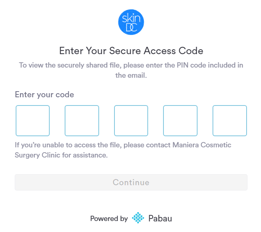
After entering the PIN, the client will be redirected to the Client Portal, where they can securely view and open the prescription.
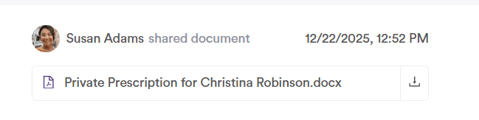
By following these steps, you can securely share prescriptions with your clients, ensuring they receive the necessary information safely and efficiently.
By following these steps, you can securely share documents, forms, treatment notes, letters and prescriptions with your clients through the Client Portal. This helps ensure sensitive information is shared safely, access is protected, and client communication remains clear and compliant.
For more guides, refer to related articles below, select additional guides, or use the search bar at the top of the page. These guides will help you get the most out of your Pabau account.
Additionally, to help you fully utilize and understand your Pabau account, we recommend exploring additional guides and resources offered at the Pabau Academy. It offers in-depth video tutorials and lessons, offering a holistic learning experience that can equip you with the essential skills for achieving success with Pabau.