
Group Video Appointments let you host virtual sessions with up to 50 participants in a single call, including internal users, patients, and invited guests. You’re no longer limited to one‑on‑one calls. You can bring in caregivers, family members, interpreters, or additional clinicians without juggling multiple links or separate calls.
Step 1: Schedule a Video Appointment
Start by logging into your Pabau account using your login credentials. In your Pabau Calendar, create a new appointment and choose a service that supports video conferencing. When you save it, Pabau generates the links needed to join the session.
NOTE: For more information on creating Virtual services in Pabau, refer to this guide.
Step 2: Navigate to the Video Tab
Click the "Clients" tab located on the left sidebar menu, and it will reveal the "Video" sub-tab. Here you can view all scheduled video appointments for the day.

Step 3: Invite Participants
When you schedule a video appointment, Pabau generates links that let different participant types join the call — including a Guest link for people who are not registered Pabau users.
To invite participants, click to copy the "Guest link."

Step 4: Start the Call
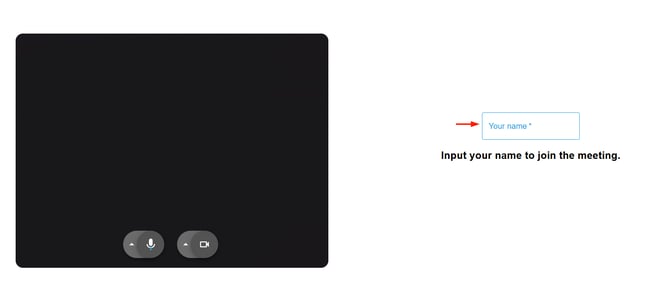
At the scheduled time, participants join by selecting their unique link. Guests are prompted to enter a name before entering the room so they are identifiable in the session. The first time you or any guest join, a browser prompt will request camera and microphone access so audio and video can function.
Step 5: Manage the Call
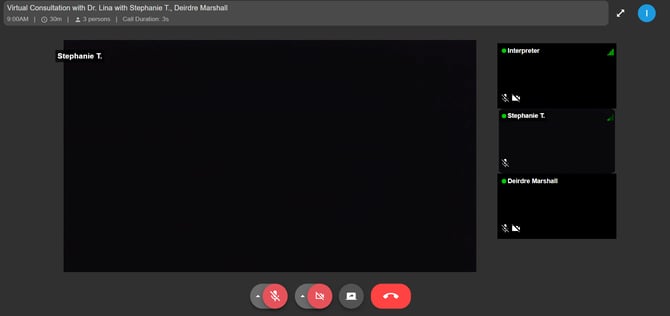
Once inside, the layout adapts as your group grows. You will see controls to toggle your video and mic, start screen sharing, and view the Participant list. If someone drops in or out, notifications let everyone know what’s happening — keeping the session lively and organized.
Step 6: Leave the Call
Participants can leave the call whenever they need to, and the session will remain open for the rest of the group if others are still connected.
By following these steps, you can easily arrange and take part in video group appointments.
For more guides, refer to related articles below, select additional guides, or use the search bar at the top of the page. These guides will help you get the most out of your Pabau account.
Additionally, to help you fully utilize and understand your Pabau account, we recommend exploring additional guides and resources offered at the Pabau Academy. It offers in-depth video tutorials and lessons, offering a holistic learning experience that can equip you with the essential skills for achieving success with Pabau.