
Step 1: Navigate to the Client Card
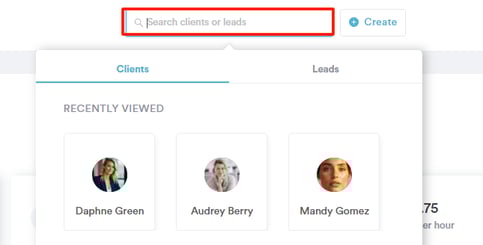
Start by logging into your Pabau account using your login credentials. Then, navigate to the search bar at the top of the screen. Type in the client name, and the client card will appear in the search results.
Step 2: Write Treatment Note
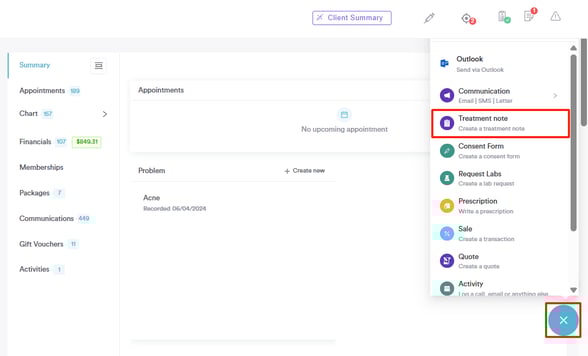
Click the "Create" button located in the bottom right corner of the screen. This will reveal the "Write a treatment note" option.
Step 3: Open the Diagnostic Picker (dX)
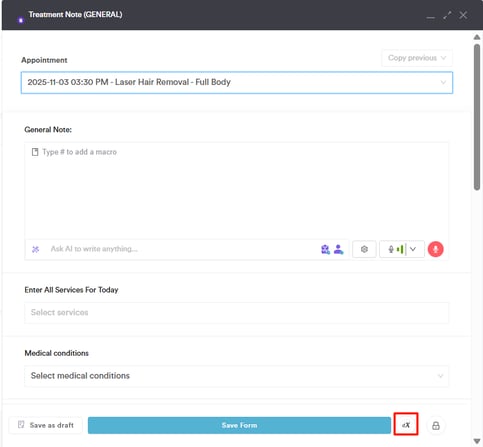
While the treatment form is open for that appointment, look for the dX button labeled “Choose diagnosis codes” (on the bottom of the form).
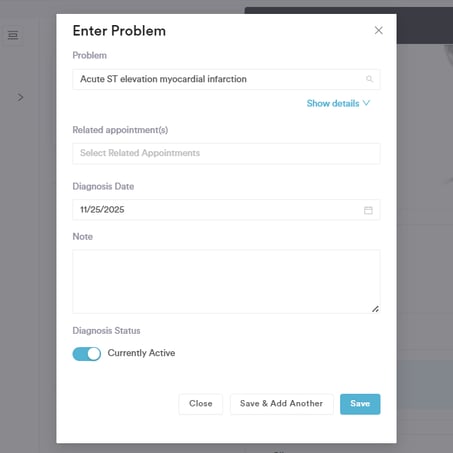
When you click the dX button, the Create Problem window will pop up. Some information is already filled in for you: the diagnosis date defaults to today, and the related appointment is automatically linked to the one you’re working on.
In the modal, use the search box to find the code you need by typing either the code or a description. The search will look through your clinic’s default code set, or ICD11 if no default has been set. You’ll see a placeholder that says something like “Search ICD11 codes”.
- Click on the code(s) you want to add.
- You can also add any extra notes if needed.
- You can deactivate the diagnosis by disabling the "Currently Active" toggle.
- When you’re done, either Create to save the code and close the window, or Save & add another if you want to add more diagnoses before closing.
If you clicked Create, the modal closes and the newly created diagnosis label(s) appear on the treatment form (visible near the bottom header or in the diagnosis area).
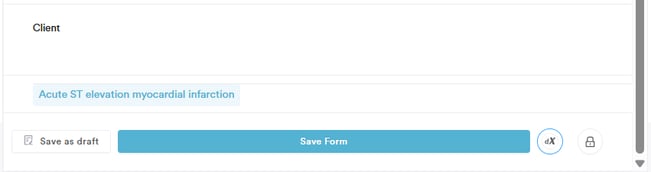
If you clicked Save & add another, the modal stays open so you can add extra diagnoses; when finished, close the modal, and you’ll see all labels added.
Step 4: Review Diagnose
Click to expand the Chart/EMR tab. This will reveal the "Client Problems" sub-tab. Diagnoses created from the treatment form are stored as Client Problems (client-level problems).
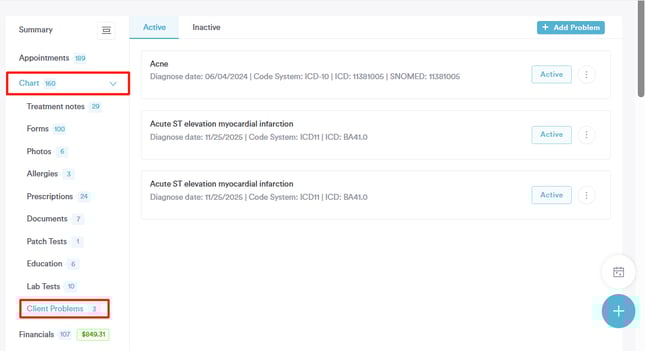
By following these steps, you can add diagnoses while writing treatment notes in Pabau.
For more guides, refer to related articles below, select additional guides, or use the search bar at the top of the page. These guides will help you get the most out of your Pabau account.
Additionally, to help you fully utilize and understand your Pabau account, we recommend exploring additional guides and resources offered at the Pabau Academy. It offers in-depth video tutorials and lessons, offering a holistic learning experience that can equip you with the essential skills for achieving success with Pabau.