
Case forms in Pabau allow your clinic to collect all the necessary information for a case in a structured and consistent way. Whether you’re handling client complaints, medical incidents, or internal escalations, case forms ensure that every detail is captured, making it easier to track, manage, and resolve cases efficiently. Setting up a case form helps maintain transparency, accountability, and compliance across your clinic while streamlining the workflow for your team.
Step 1: Navigate to Setup
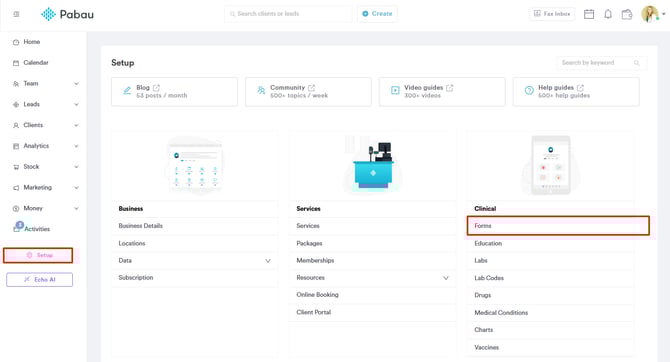
Start by logging into your Pabau account using your login credentials. Then, navigate to the bottom corner of the left sidebar menu and click 'Setup' to access the Setup page. Under the clinical section, find the 'Forms' tab.
Step 2: Create Form
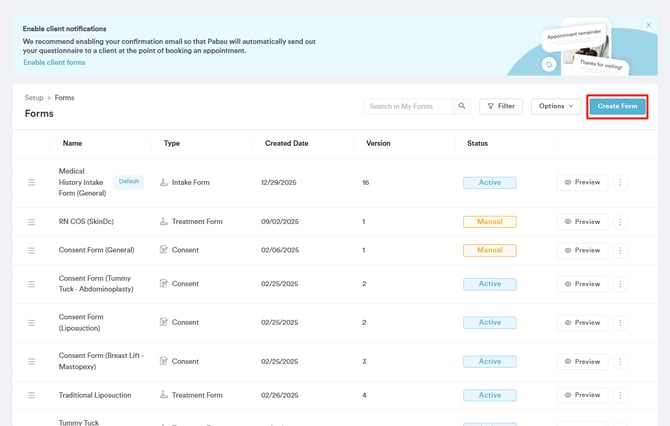
On the Forms page, you'll find all your created medical form templates. To create a new one, navigate to the top right corner of the screen and click the 'Create Form' button.
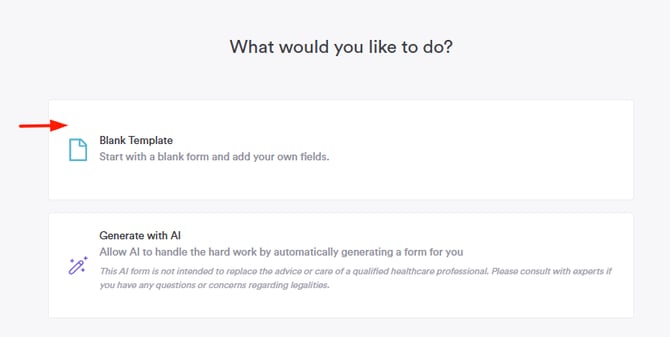
You will be prompted to select whether you'd like AI to help you create a form or proceed with a blank template. In this case, select 'Blank Template.'
Step 3: Complete General Section
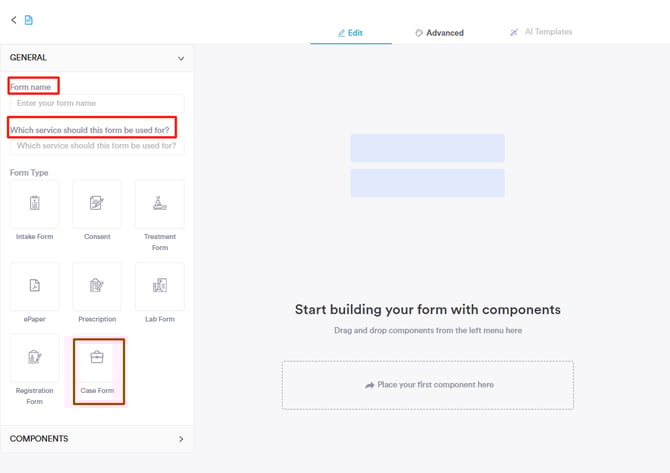
Once the Create Form page opens, complete the following in the General section:
-
Form Name: Enter a clear name for the form.
-
Which service should this form be used for: Link the relevant service.
-
Form Type: Select “Case Form” from the Form Type options.
Step 4: Add Relevant Components
In the Components section, proceed to drag and drop relevant components to the template.
What Should a Case Form Include?
A case form should capture all essential information needed to properly review, investigate, and resolve a case. Using structured form components ensures consistency, clarity, and compliance across your clinic.
Below are common sections and example questions you may want to include when building a case form:
Case Details
Use short answer or date components to capture key information.
-
Date the issue was reported (Date)
-
Who reported the case? (Short answer)
-
Location or department involved (Short answer)
Complaint or Incident Description
Use long answer components for detailed responses.
-
Please describe the issue or complaint in detail (Long answer)
-
What happened, and when did it occur? (Long answer)
Category and Severity
Use dropdown or multiple choice components to standardize responses.
-
Type of case (Dropdown: Complaint, Incident, Feedback, Escalation)
-
Severity level (Multiple choice: Low, Medium, High)
People Involved
Use short answer or multi-select components.
-
Staff members involved (Multi-select)
-
Other individuals involved (if applicable) (Short answer)
Supporting Information
Use file upload or checkbox components.
-
Attach supporting documents or evidence (File upload)
-
Was an appointment related to this case? (Yes/No checkbox)
Resolution and Follow-Up
Use long answer and dropdown components.
-
Actions taken to resolve the case (Long answer)
-
Outcome (Dropdown: Resolved, Escalated, Follow-up Required)
-
Is further action required? (Yes/No checkbox)
Declaration (Optional)
Use checkbox or signature components.
-
I confirm that the information provided is accurate (Checkbox or Signature)
Step 5: Save Form
Once you've filled out all the relevant details, navigate to the top right corner of the screen and click 'Create Form' to finalize.

While the Cases feature allows you to log, track, and manage complaints or incidents, using an official case form ensures that all required information is captured in a consistent and structured way. Case forms act as a standardized record, helping your clinic document key details clearly, support internal reviews, and meet compliance requirements.
NOTE: For more information on managing cases in Pabau, refer to this guide.
For more guides, refer to related articles below, select additional guides, or use the search bar at the top of the page. These guides will help you get the most out of your Pabau account.
Additionally, to help you fully utilize and understand your Pabau account, we recommend exploring additional guides and resources offered at the Pabau Academy. It offers in-depth video tutorials and lessons, offering a holistic learning experience that can equip you with the essential skills for achieving success with Pabau.