
NOTE: To scan a product barcode, you must have a barcode scanner connected to your device. For more information on setting it up, follow this guide.
Step 1: Navigate to Create
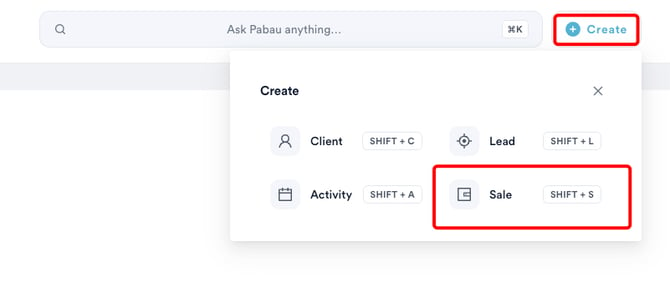
Start by logging into your Pabau account using your login credentials. Then, navigate to the top of the screen and click the "Create" button. To access POS, click "Sale."
Step 2: Select Client
Navigate to the top right corner of the screen and type in the search bar to search for the client.

Step 3: Scan Products
The Products tab opens by default. If a scanner is connected, you can scan a product, and it will appear on the screen. Select it to add it to the cart instantly.
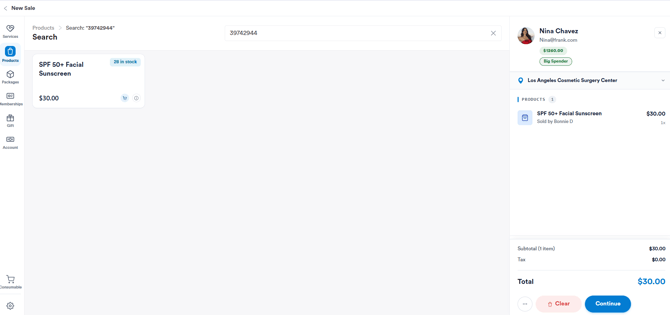
You can also manually enter the barcode in the search bar at the top, and the product will appear on the screen. Select to add it to the client's cart.
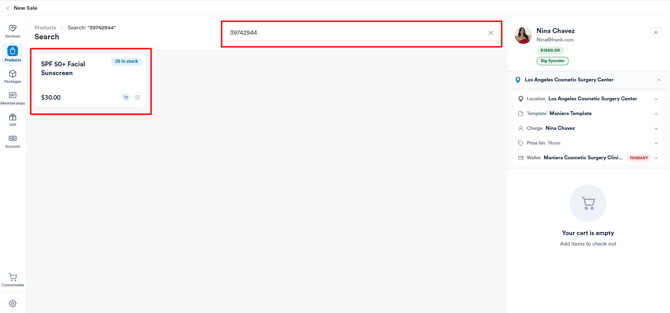
Then proceed to the payment step as you usually would.
By following these steps, you can scan products in the POS using a barcode scanner.
Was this guide helpful? Let us know by voting below - your feedback helps us write clearer articles.
For more guides, browse the related articles below or use the search bar at the top of the page. You can also watch our video learning series, the Pabau Academy, or visit the Support page for additional help.