
NOTE: Your clinic decides which options you see, so some of the steps below may look slightly different or be skipped.
Your clinic’s client portal does not use a password. Each time you sign in, we email you a six-digit code and a sign-in link, so there is no portal password to forget or reset. In this article, you will learn what to do if your code does not arrive or has expired, and how to set or change the password for your clinic’s patient app if your clinic uses one.
Step 1: Ask for a New Code
If you are on the Enter your code screen and need a new code:
- Wait a few seconds until Resend in changes to Resend the code, then click it. We will email you a new code.
- If you typed your email address wrongly, click Use a different email and enter it again.
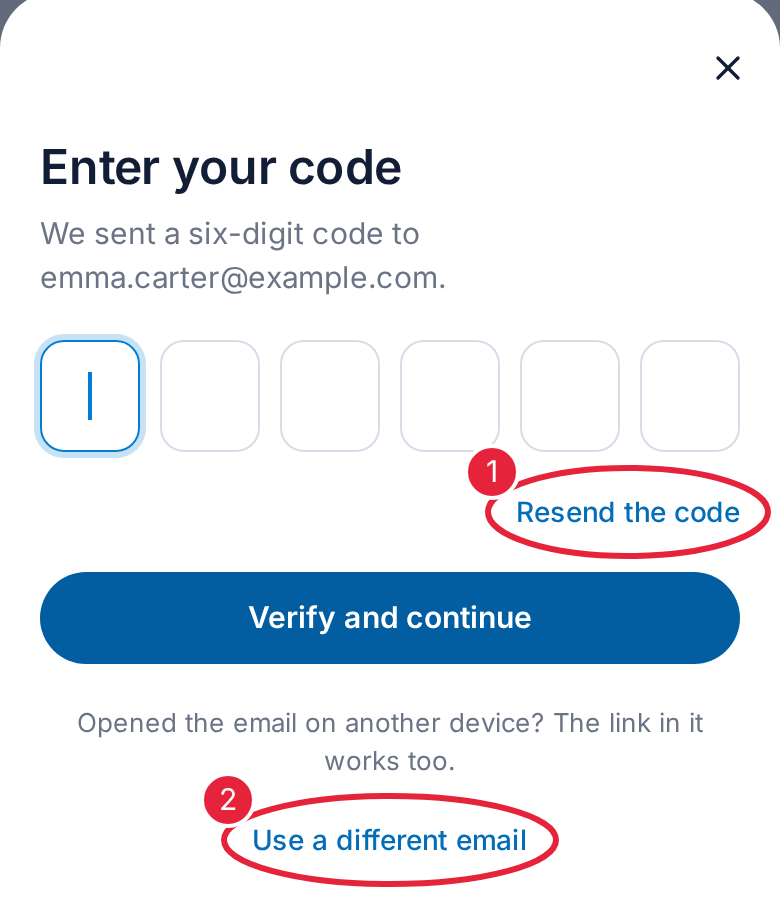
Resend the code, or use a different email
NOTE: Codes and sign-in links expire after 10 minutes and can each be used only once. Always use the code from the most recent email: if you see “That code did not match”, check that you are using the latest one.
If Your Code Doesn’t Arrive
- Check your spam, junk and promotions folders. The email comes from your clinic, with the subject “Sign in to” followed by the clinic’s name.
- Check that the email address on the Enter your code screen is the one you use.
- Give it a minute or two before asking for another code, as email can sometimes be slow.
- If you see “You’ve used your resends for now”, use the sign-in link or code in the email you already have, or try again later.
- Still nothing? Contact your clinic. They can check the email address they have on your record.
TIP: Opened the email on another device? Click the Sign in button in the email instead of typing the code — the link works too.
Step 2: Set or Change Your Patient App Password
Some clinics also have a patient app that you sign in to with a password. You can set or change that password from your portal. Sign in to the portal with your email code first, then click your name at the top right and choose Account details.
- In the Security box on Personal Details, click Set a password. If you already have one, the button says Change password.
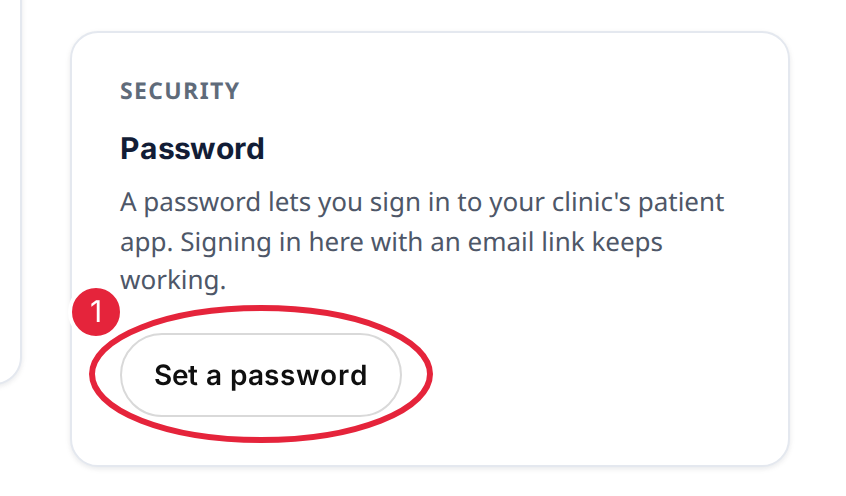
Click Set a password in the Security box
- Enter your New password. It needs at least 8 characters, with a lowercase letter, an uppercase letter, a number and a symbol (such as ! or #).
- Enter it again in Confirm password.
- Click Save password.
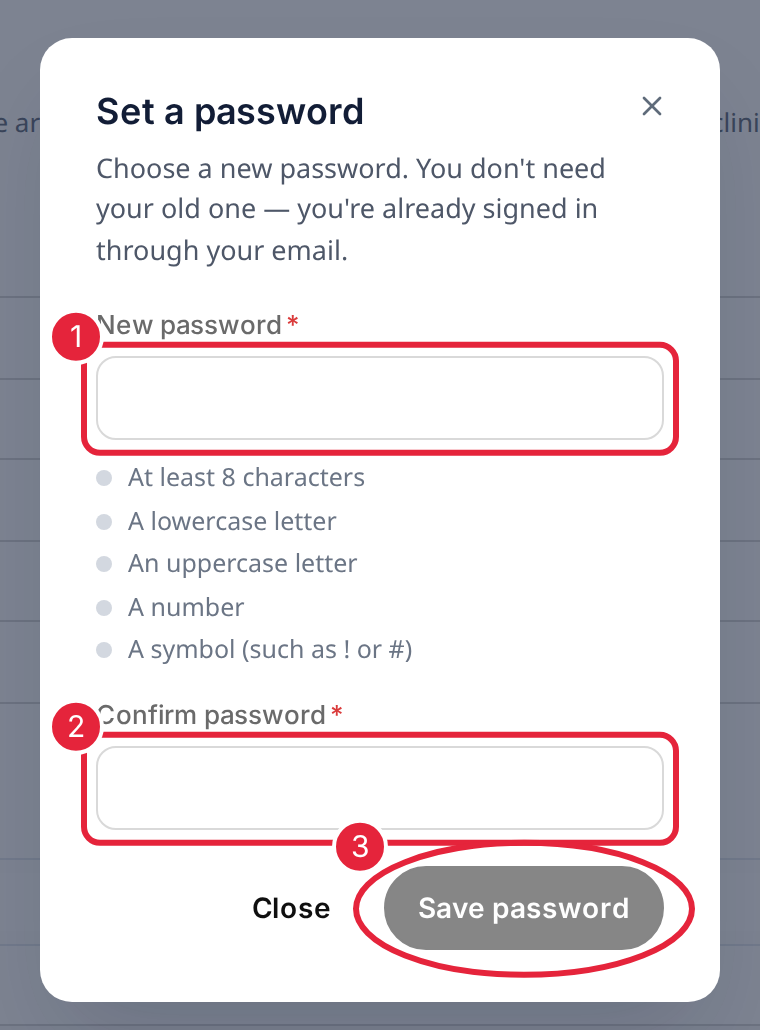
Enter and confirm your new password, then click Save password
You do not need your old password, because you are already signed in through your email. When the password is saved, any other devices signed in to the portal are signed out, and we email you to confirm that your password was changed.
IMPORTANT: Forgotten your patient app password? Sign in to the portal with an emailed code as usual, then set a new password as shown above. If you get an email saying your password was changed and it wasn’t you, sign in and set a new password straight away, then let your clinic know.
NOTE: Setting a password does not change how you sign in to the portal online: you still sign in with a code or link sent to your email.
What's next?
- How to Log In to the Client Portal
- How to Register on the Client Portal
- Client Portal Help Guide (for Patients)
Questions? Contact your clinic directly — they will be happy to help.
Was this guide helpful? Let us know by voting below - your feedback helps us write clearer articles.
For more guides, browse the related articles below or use the search bar at the top of the page. You can also watch our video learning series, the Pabau Academy, or visit the Support page for additional help.