
NOTE: This guide covers the new Online Bookings and Client Portal, which are being rolled out to clinics in phases. If your screens look different, your account may still be on the classic version — message us via the in-app chat and we will help.
If some treatments need a particular room — a laser room or a consultation room, for example — your booking page can check that a suitable room is free before it offers a time. In this article, you will learn how to set up your rooms and switch on the room check for online bookings.
With the room check on, a client only sees a time when both the provider is free and a room that can be used for the service is free at the chosen location, for the whole length of the appointment.
Step 1: Set Up Your Rooms
- Go to Setup and, under Catalogue, click Rooms. Click a room to open it, or click Create Room.
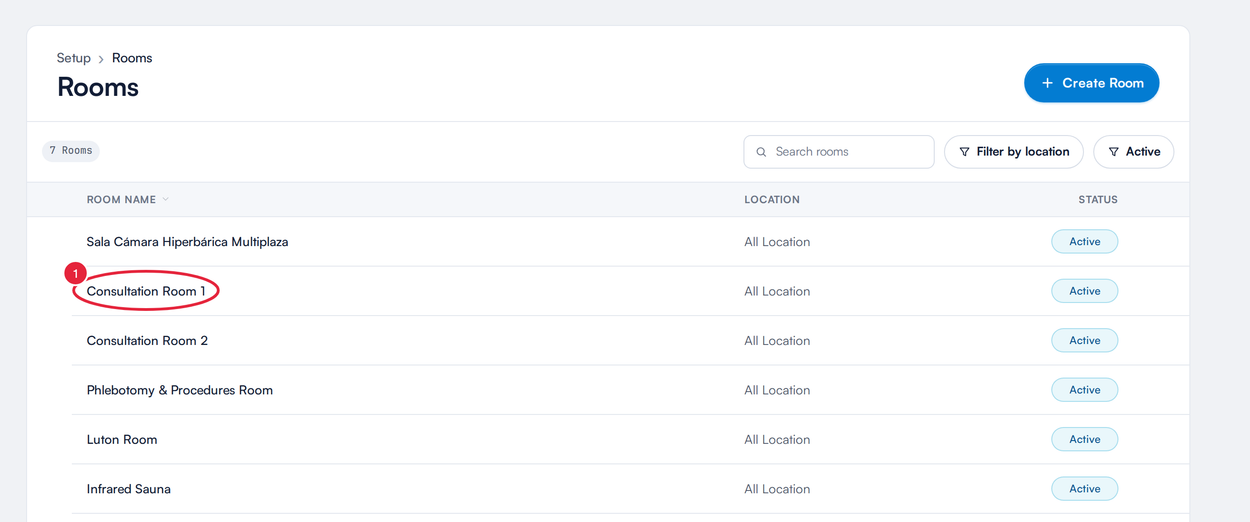
Setup → Rooms: click a room to edit it
- Under Appointment capacity, choose how many appointments can use the room at the same time: One appointment at a time, Specific number of appointments (for a shared room) or No limit of appointments.
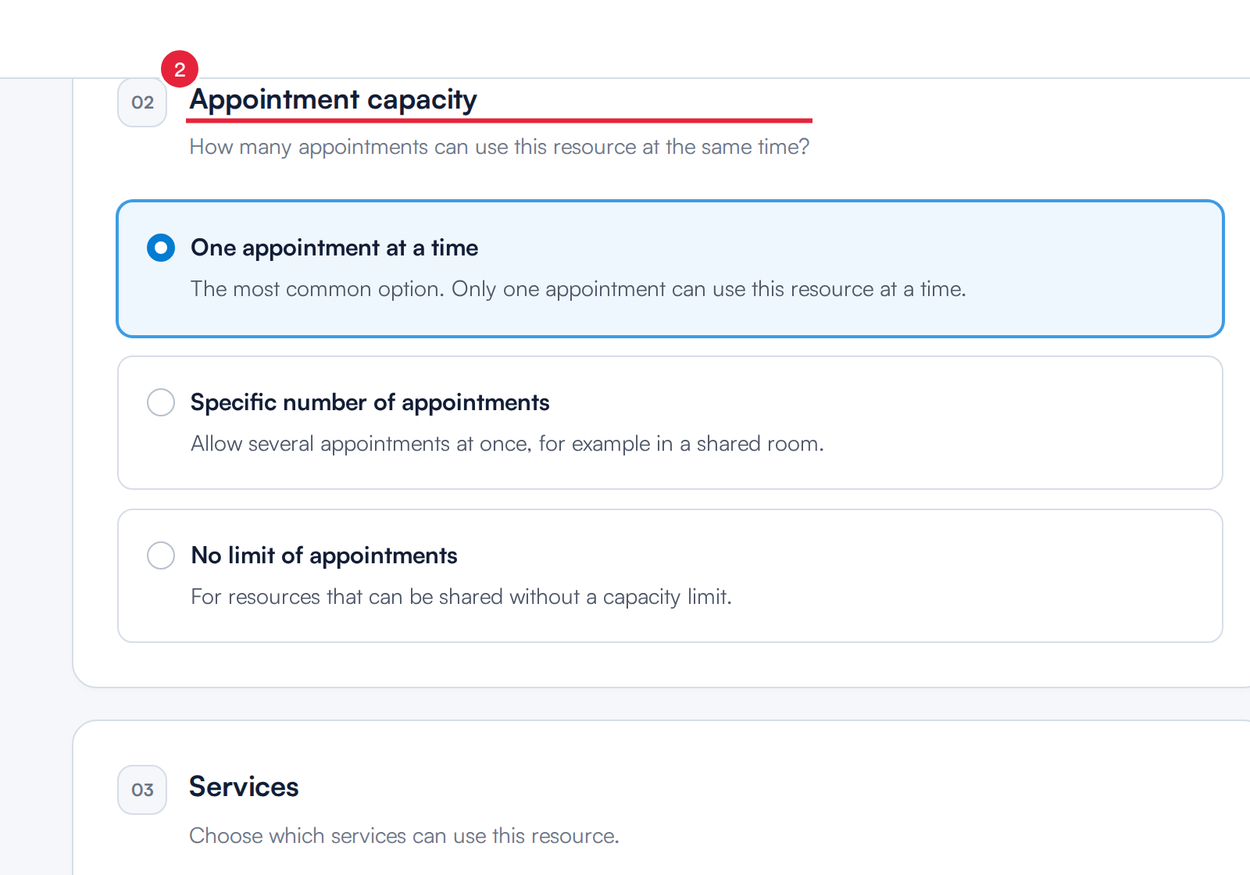
Choose how many appointments can use the room at once
- Under Services, switch on All services can be performed in this room, or leave it off and tick only the services that are performed in this room.
- Under Locations, choose the location where the room can be booked.
- Make sure Available for bookings is switched on, then click Save.
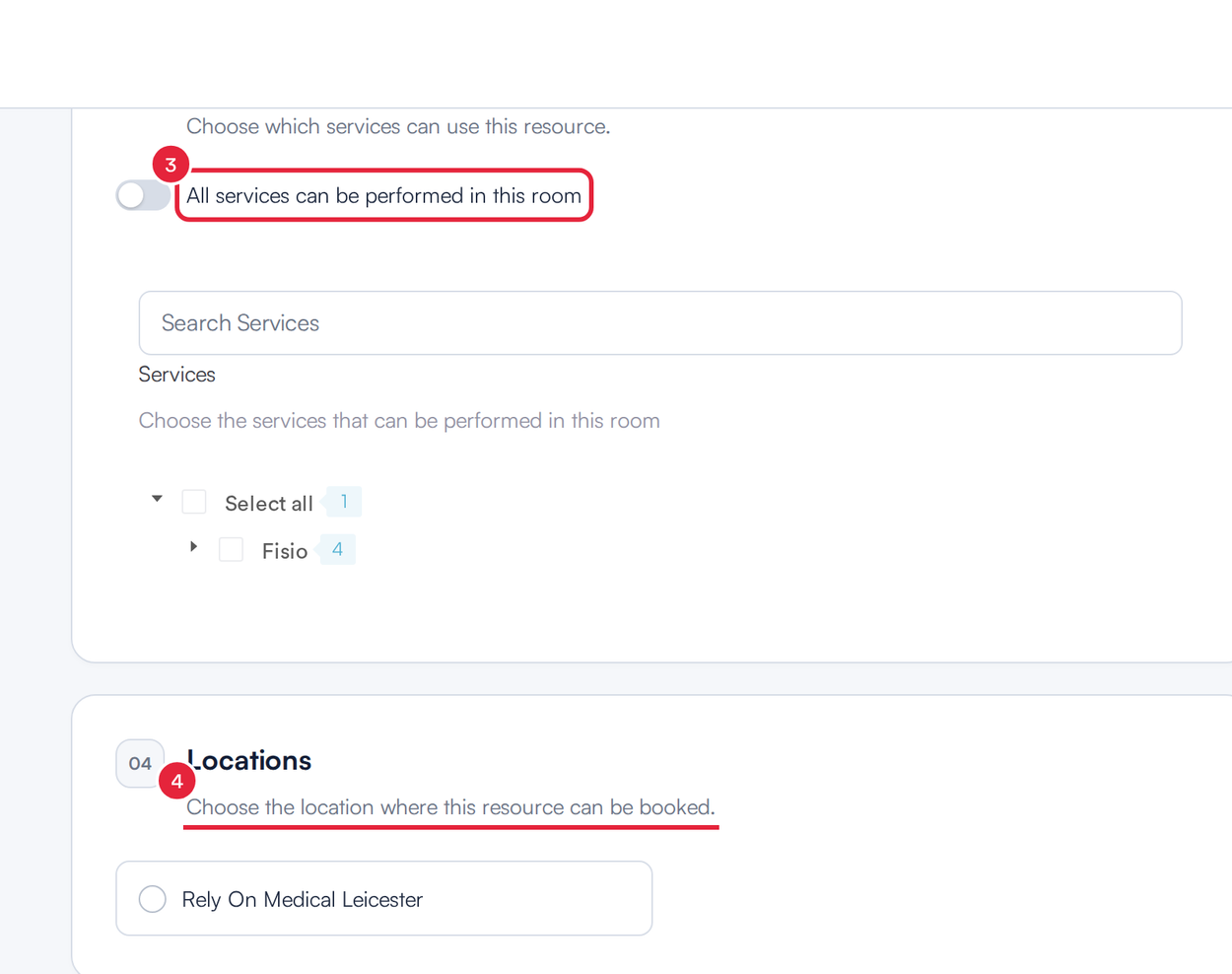
Choose which services use the room, and where it is
Step 2: Switch On the Room Check
Go to Setup → Online Bookings and click Customise page to open Pabau Studio.
- In the Booking pages strip, click Date & Time.
- Make sure Edit is selected, hover over the calendar and click the Date & Time label.
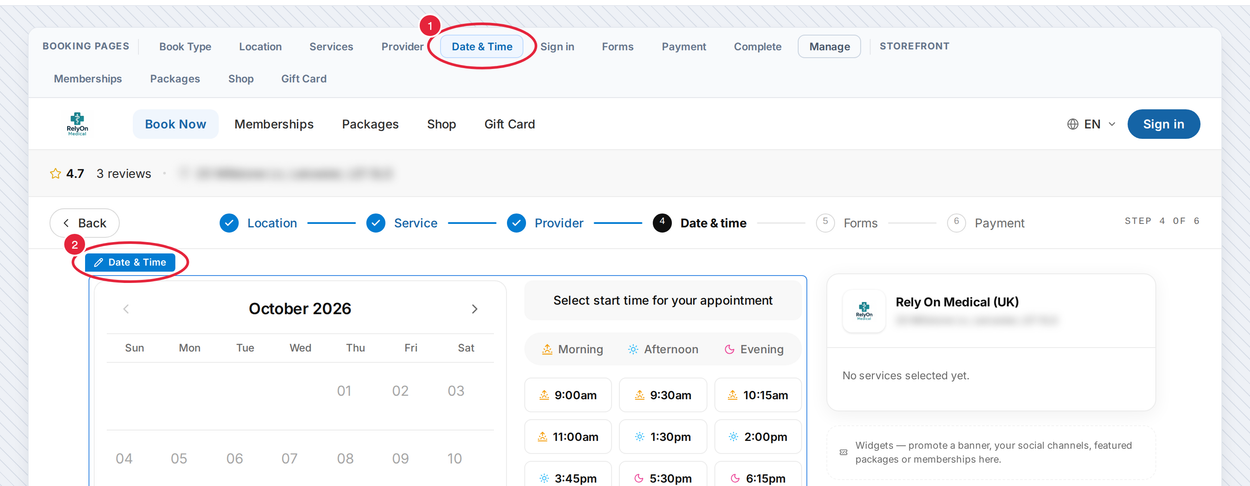
Open the Date & Time page and click its label
- In the Date & time section panel, open the Rules tab.
- Under Resource management, switch on Don't allow booking if room in use.
- Close the panel and click Publish.
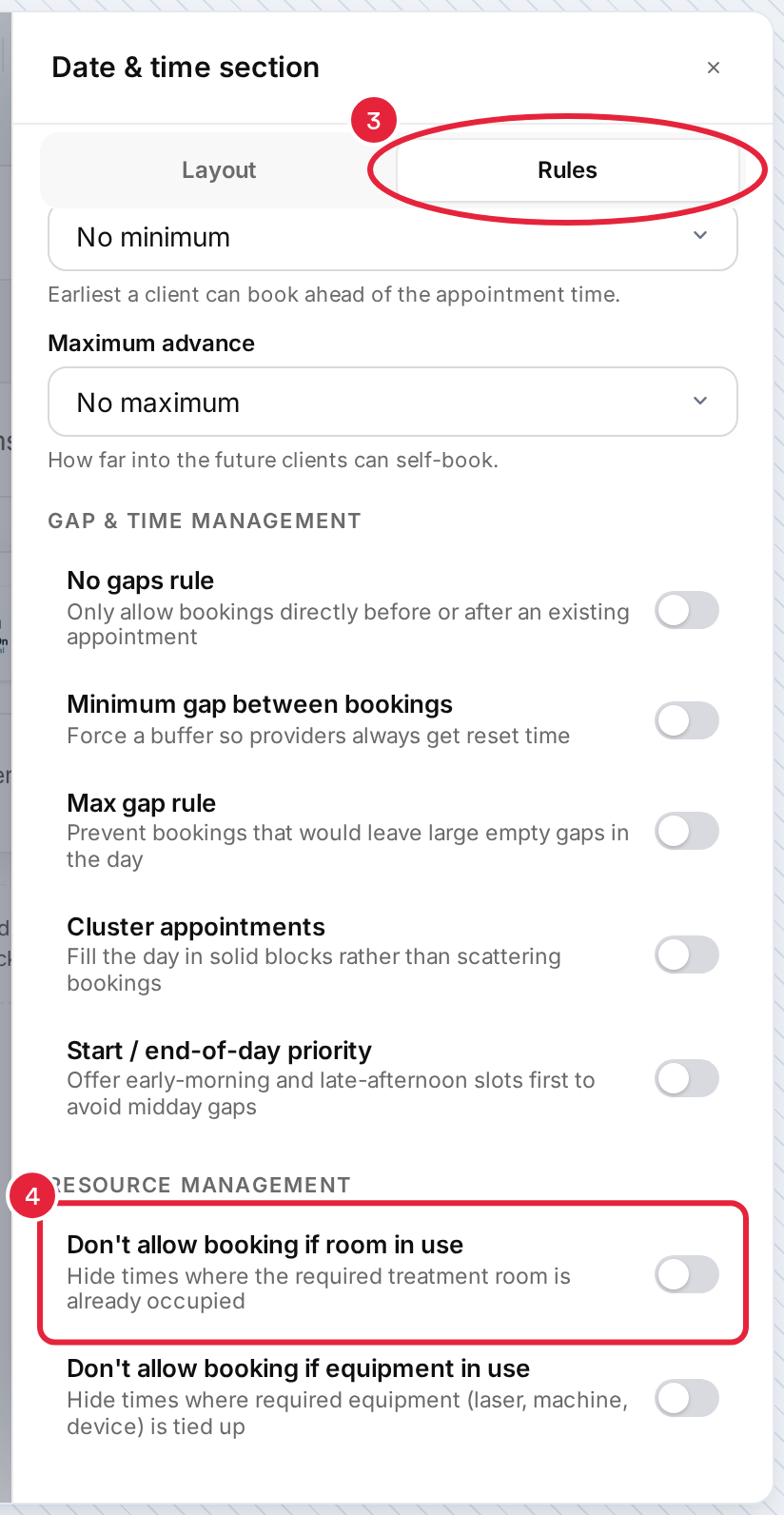
Rules tab → Resource management → Don't allow booking if room in use
NOTE: If you switched on room checks in the classic online bookings, they carry on working on your new booking page until you change this rule — even if the switch shows as off. To be sure, switch it on and publish.
TIP: Don't allow booking if equipment in use works the same way for lasers, machines and devices linked to a service. Set equipment up in Setup → Resources.
Step 3: Know How Rooms Affect the Times Clients See
| How the service is set up | What clients see |
|---|---|
| Can be performed in one room at the chosen location | A time appears only if the provider and that room are both free for the whole appointment. For example, a 60-minute treatment at 2:00pm is not offered if the room is only free until 2:45pm. |
| Can be performed in several rooms | A time appears if the provider and at least one of those rooms are free. When the client books, a free room is assigned to the appointment automatically. |
| No room at the chosen location can be used for it | Rooms are not checked — times depend on the provider's availability only. |
| A room allows several appointments at once | The room stays bookable until it reaches its Specific number of appointments, or never fills up with No limit of appointments. |
Good to Know
- Only rooms at the location the client chose are checked. If a service's room is set up at another location, those times are not offered.
- Appointments booked in your calendar without a room still count — for a service that needs one of these rooms, they take up a place, so the booking page never offers more appointments than you have rooms for.
- If your clinic has no rooms set up, switching on the room check makes no difference.
- The provider must also be working at that time and offer the service online. See Part 3: Set Booking Steps and Availability Rules.
What's next?
For every other rule on the Rules tab — minimum notice, maximum advance and gap rules — see Part 3: Set Booking Steps and Availability Rules.
Questions? Reach us any time via the in-app chat — we’re happy to help.
Was this guide helpful? Let us know by voting below - your feedback helps us write clearer articles.
For more guides, browse the related articles below or use the search bar at the top of the page. You can also watch our video learning series, the Pabau Academy, or visit the Support page for additional help.