
NOTE: This guide covers the new Online Bookings and Client Portal, which are being rolled out to clinics in phases. If your screens look different, your account may still be on the classic version — message us via the in-app chat and we will help.
In the new Client Portal, relationships are managed on the Family page (shown to clients as Relationships & Next of Kin). In this article, you will learn how to switch it on and what clients can do there.
Step 1: Switch On Family
- Go to Setup → Client Portal and, on the Essentials tab, find the Family card.
- Turn its switch on.
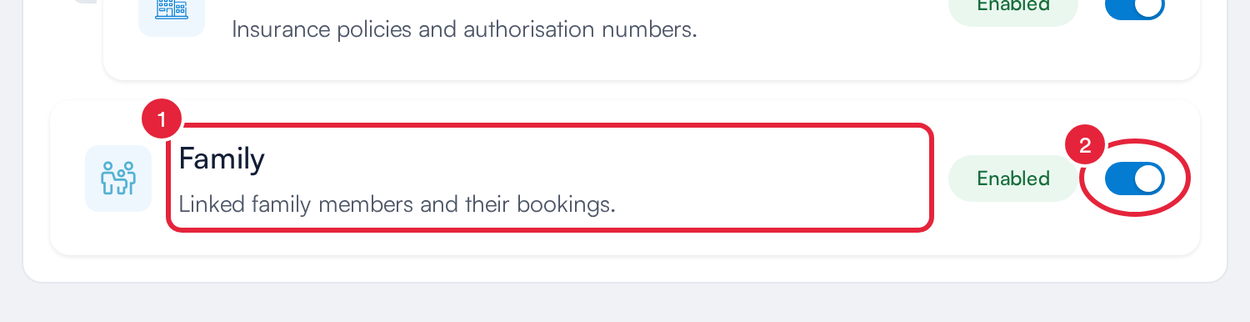
The Family card on the Essentials tab
Step 2: How Clients Add a Family Member
- Clients open the family page from the portal menu (or from Relationships on their personal details page).
- They click Add family member.
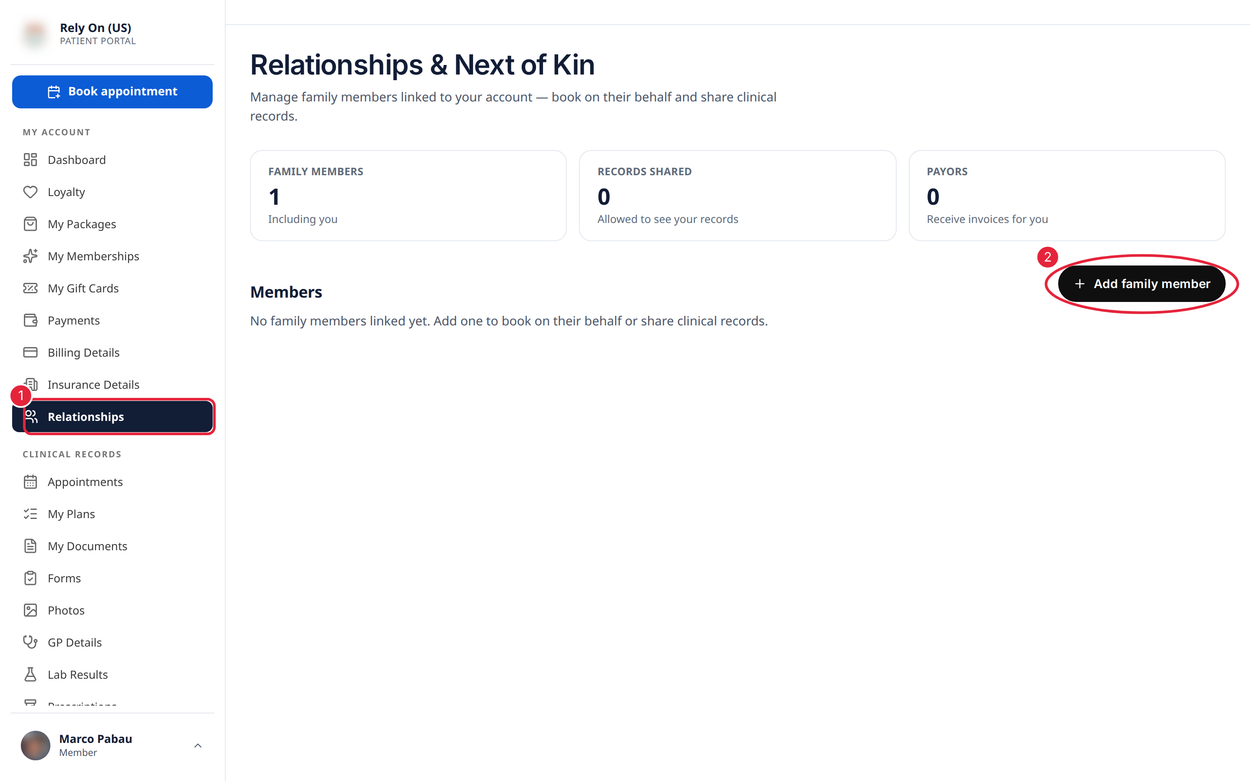
The client’s Relationships & Next of Kin page
They enter the person’s first name (last name is optional), choose a Relationship — for example Mother, Son or Partner (Show all relationships lists more) — and choose Privacy:
- Restrict sharing — the family member is not allowed to see the client’s records.
- Share records — the family member is allowed to see the client’s records. This does not create a portal login for them; your clinic sets that up separately.
Then they click Add member.
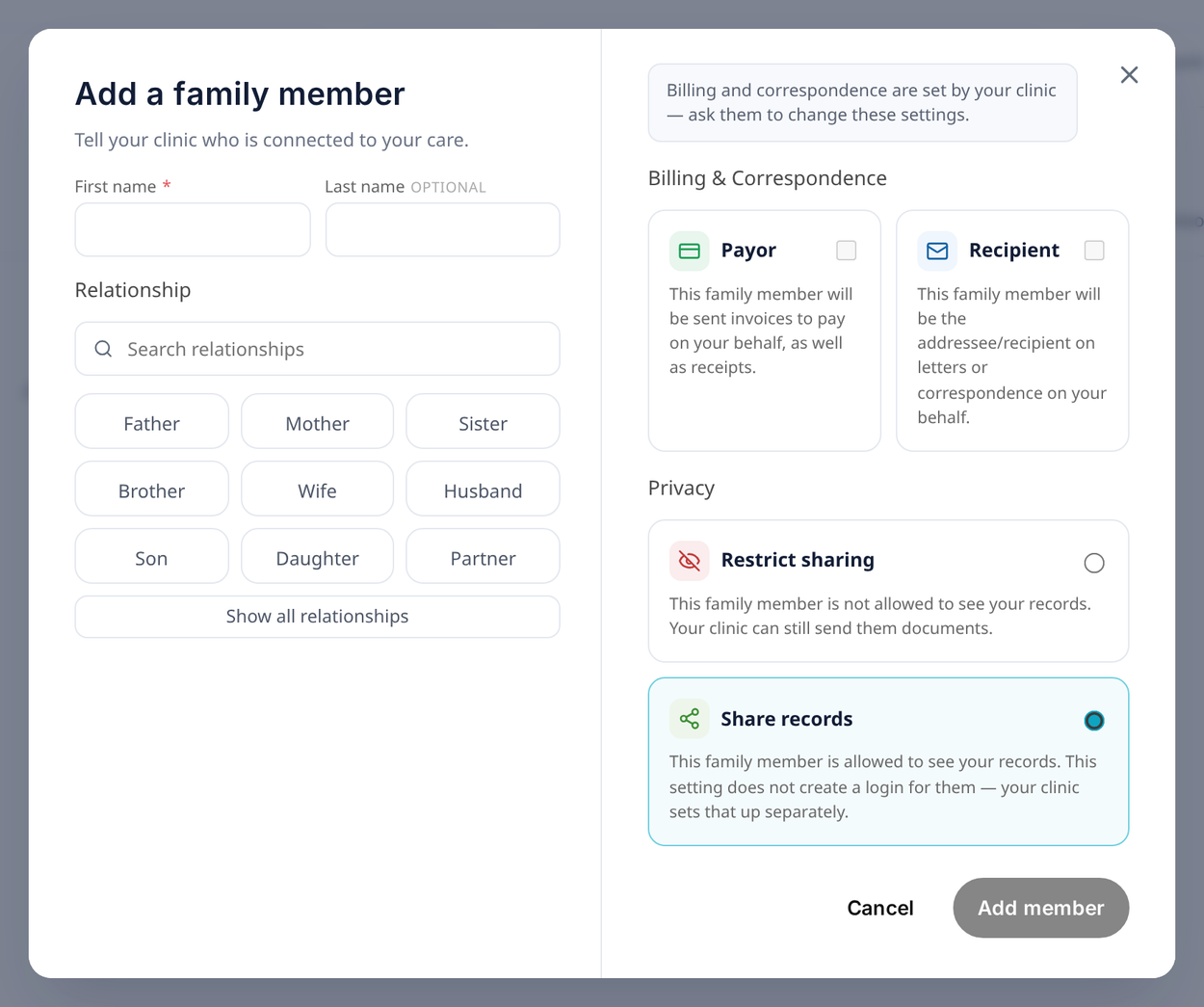
Add a family member
What Happens in Pabau?
Each family member a client adds is created as a new client in Pabau, linked to the client through the Relationships tab of their client card. The portal never searches your client list, so if the person was already your client you may need to merge the two records.
NOTE: Payor and Recipient — who receives invoices and letters on the client’s behalf — are set by your clinic, not the client. Change them on the Relationships tab of the client card.
What's next?
For the other portal features, see How to Choose Which Features Clients See in Your Client Portal. Send your clients How to Use Your Client Portal (New Client Portal).
Questions? Reach us any time via the in-app chat — we’re happy to help.
Was this guide helpful? Let us know by voting below - your feedback helps us write clearer articles.
For more guides, browse the related articles below or use the search bar at the top of the page. You can also watch our video learning series, the Pabau Academy, or visit the Support page for additional help.