
Checklist:
1. Set Up Two-Factor Authentication (2FA)
2. Use a Strong Password
2.1. Check Saved Passwords in Your Browser
3. Avoid Shared Accounts
4. Use Secure, Supported Browsers
5. Windows Security Enabled
6. Keep Your Mac or iOS Device Secure
7. Keep Your System and Browser Up to Date
8. Review Browser Extensions
8.1. How to Tell if a Browser Extension Might Be Malicious
NOTE: Keeping your account safe is a shared responsibility. While we provide robust security measures, it’s essential for users to follow best practices to prevent unauthorized access.
To help you keep your Pabau account secure, we’ve outlined both the built-in security features and recommended best practices you can follow. Below, you’ll find the key measures and steps to take to protect your account.
1. Set Up Two-Factor Authentication
(Critical for Account Security)
Two-factor authentication adds an essential extra layer of security to your account. Even if someone gets hold of your password, they won’t be able to log in without a second verification step.
- For maximum protection, make sure all staff members are enrolled in 2FA.
Step 1: Navigate to Setup
Start by logging in to your Pabau account using your login credentials. Then, navigate to the Setup page by clicking the "Setup" button
%201.png?width=621&height=292&name=How%20to%20Enable%20Two-Factor%20Authentication%20(2FA)%201.png)
Step 2: Access Business Details
Under the Business section, find the "Business Details" tab.
%202.png?width=635&height=307&name=How%20to%20Enable%20Two-Factor%20Authentication%20(2FA)%202.png)
Step 3: Switch to the Security Tab
To access the security options, navigate to the "Security" tab located on the left side of the screen.
-2.png?width=589&height=308&name=Screenshot%20(1)-2.png)
Step 4: Manage 2FA Enrollment
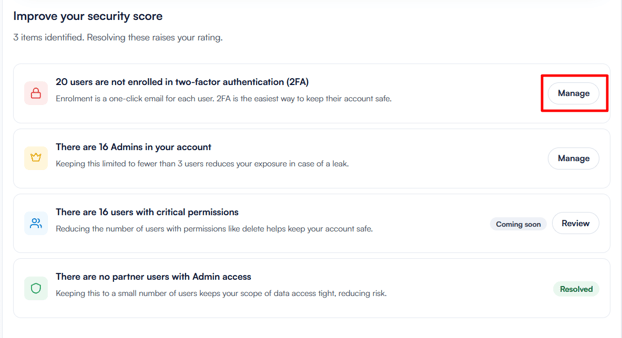
Here you'll find security recommendations provided by Pabau. These suggestions highlight areas where your account's security can be improved. By clicking Manage on the 2FA recommendation, you can see all staff members and their current enrollment status — including which 2FA methods they have available.
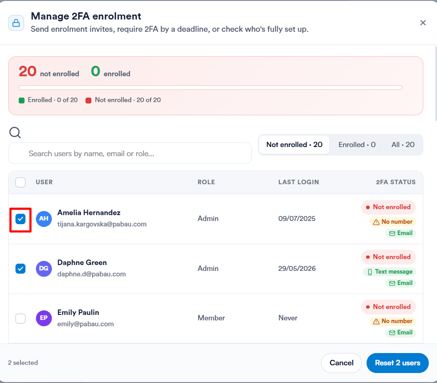
Select the users you want to enroll and select Reset users to send them an enrollment invite.
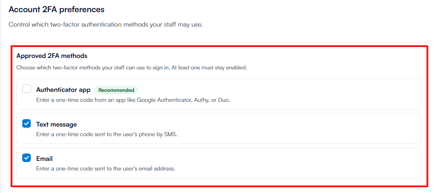
Step 5: Set 2FA Preferences
Once users are enrolled, scroll down to Account 2FA preferences to choose which 2FA methods your staff are allowed to use — authenticator app (recommended), text message, or email. At least one method must remain enabled at all times.
Once you've configured your preferences, click Save Changes in the top right corner to apply them. 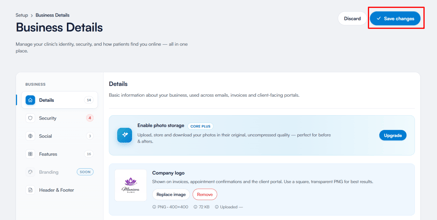
By following these steps, you can set up and manage two-factor authentication for all staff members in your Pabau account.
2. Use a Strong Password
Your password is your first line of defense. Use a unique, complex password with a mix of letters, numbers, and symbols. Avoid easily guessable information or reusing passwords across multiple sites.
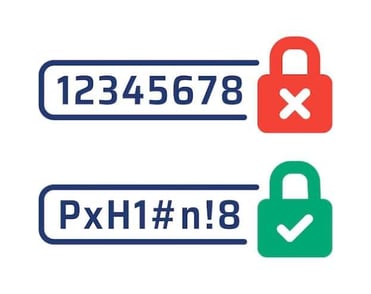
Example: Instead of Pabau123, use something like G7r!9vB#xQ2p. A strong password is long, unpredictable, and doesn’t contain common words or patterns.
NOTE: You can use the Have I Been Pwned website to see if your password has been exposed in a data breach. If it has, update it immediately with a stronger, unique password to keep your account secure.
To find out how you can change your password in Pabau, refer to this guide.
Check Saved Passwords in Your Browser
Browsers often save passwords for convenience, but saved credentials can be a security risk if your device is compromised.
- Regularly review the passwords stored in your browser and ensure they are strong, unique, and up to date.
- Remove any old or weak passwords, and consider using a password manager for added security.
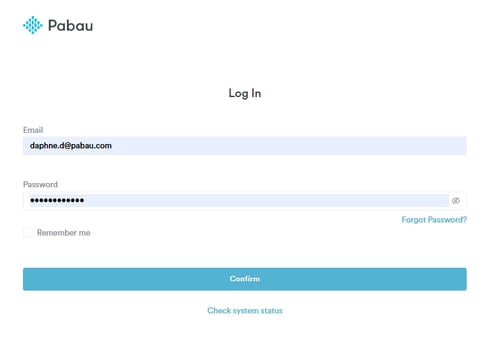
Refer to the articles below for guidance on how to view, manage, and secure your saved passwords in your browser.
- Manage passwords in Chrome
- Find saved passwords and passkeys on your Mac
- Password Manager in Firefox
- Edit your passwords in Microsoft Edge
NOTE: Most browsers (Chrome, Firefox, Safari, Edge) have a “Passwords” or “Autofill” section in settings where you can view, manage, and delete saved credentials.
3. Avoid Shared Accounts
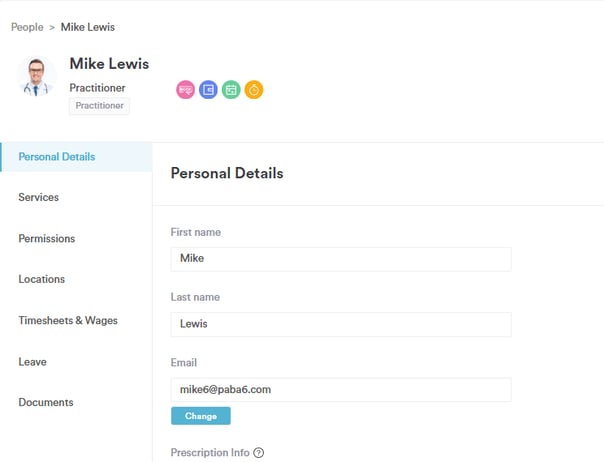
Sharing accounts increases security risks and makes it difficult to track activity. Multiple users logging in with the same credentials can compromise both security and accountability.
Each staff member should have their own separate account, with a unique email and password. This ensures that every action is properly attributed, and it allows you to manage permissions, and maintain better overall security for your Pabau account.
4. Use Secure, Supported Browsers
Always access your account using a trusted, evergreen browser. An evergreen browser is a web browser that automatically updates itself to the latest version in the background.
Such browsers will always be up to date if you are connected to a stable internet connection. The browsers detect new updates once released on the browser’s manufacturer’s website.

- Browsers like Chrome, Firefox, or Safari are recommended because they are regularly updated and provide strong security features.
- Avoid less secure or unsupported browsers, such as Brave, Internet Explorer, or older versions of Edge, as they may not be fully compatible with Pabau and could expose your account to security risks.
5. Windows Security Enabled
If you’re using a Windows device, ensure that your device’s built-in security features, such as Windows Defender or other antivirus programs, are enabled and up to date.
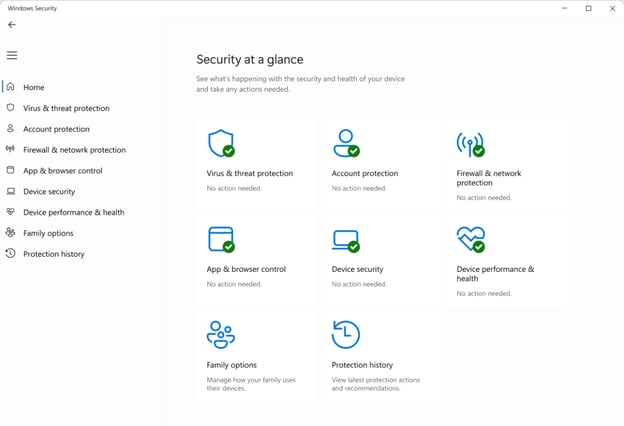
This helps protect your system from malware, viruses, and other threats that could compromise your account. Keeping Windows security active adds an important layer of defense for your Pabau data.
6. Keep Your Mac or iOS Device Secure
If you’re using a Mac, iPhone, or iPad, make sure your device’s built-in security features are enabled and up to date.
On macOS, tools like Gatekeeper and XProtect help prevent malicious apps from running, while keeping your System Updates current ensures you have the latest security patches.
On iOS devices, enabling automatic updates and using strong device passcodes or Face/Touch ID helps protect your account and personal data from unauthorized access.

7. Keep Your System and Browser Up to Date
Updates often include critical security patches that protect your device and account from vulnerabilities. Whether you’re on Windows, macOS, iOS, or Android, staying up to date helps keep your Pabau account safe and your data secure.
- Always ensure your operating system and browser are running the latest versions.

8. Review Browser Extensions
Browser extensions can add useful features, but some may have access to sensitive data, including login information and personal details. To keep your account secure:
-
Regularly review installed extensions: Check your browser settings to see which extensions are active.
-
Remove unnecessary or unknown extensions: Only keep extensions you trust and actively use.
-
Be cautious of malicious extensions: Some extensions may appear legitimate but can capture data or track activity without your knowledge.

How to Tell if a Browser Extension Might Be Malicious:
Not all extensions are safe, so it’s important to be cautious. Here are some tips to identify potentially harmful extensions:
-
Check the Source: Only install extensions from official browser stores (Chrome Web Store, Firefox Add-ons, Safari Extensions). Avoid downloading from random websites.
-
Review Permissions: When installing, check what the extension can access. Be wary if it requests access to all websites, your data, or passwords unnecessarily.
-
Look at Ratings and Reviews: Extensions with few downloads, poor ratings, or suspicious reviews may be unsafe.
-
Check the Developer: Trusted developers usually have verified profiles and clear support information. Unknown developers can be a red flag.
-
Watch for Unexpected Behavior: If your browser slows down, shows extra ads, or behaves oddly after installing an extension, it could be malicious.
Regularly auditing your extensions and removing ones you no longer use or trust is a key step in keeping your Pabau account and device secure.
NOTE: For more examples of potentially dangerous browser extensions and how they can compromise your data, check out this article by Kaspersky: Suspicious Chrome Extensions with 6 Million Installs. It’s a helpful resource to understand the risks and stay safe online.
For more guides, refer to related articles below, select additional guides, or use the search bar at the top of the page. These guides will help you get the most out of your Pabau account.
Additionally, to help you fully utilize and understand your Pabau account, we recommend exploring additional guides and resources offered at the Pabau Academy. It offers in-depth video tutorials and lessons, offering a holistic learning experience that can equip you with the essential skills for achieving success with Pabau.