
Two-factor authentication adds an essential extra layer of security to your account. Even if someone gets hold of your password, they won’t be able to log in without a second verification step.
- For maximum protection, make sure 2FA is enabled for all staff members.
Step 1: Navigate to Setup
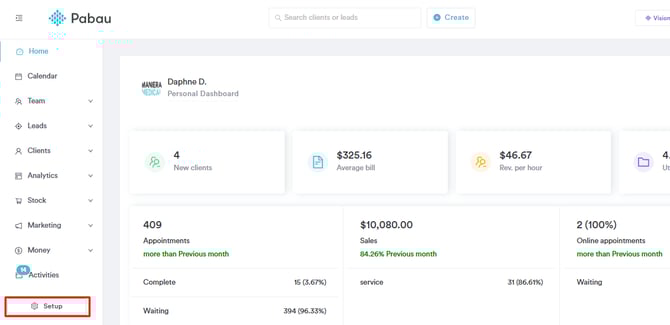
Start by logging in to your Pabau account using your login credentials. Then, navigate to the Setup page by clicking the "Setup" button
Step 2: Access Business Details
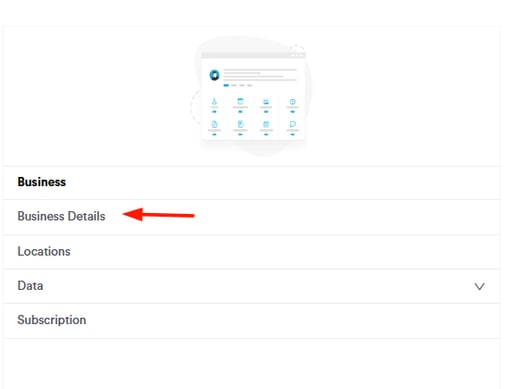
Under the Business section, find the "Business Details" tab.
Step 3: Switch to the Security Tab
To access the security options, navigate to the "Security" tab located on the left side of the screen.

Step 4: Activate 2FA
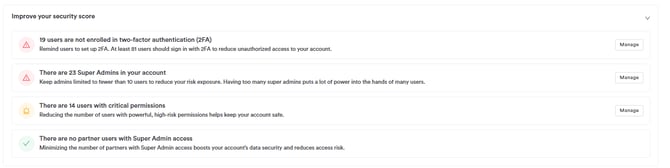
Here you’ll find security recommendations provided by Pabau.
These suggestions highlight areas where your account’s security can be improved. By clicking Manage on any recommendation, you can take action — such as enabling 2FA, adjusting admin permissions, or reviewing critical user access to strengthen your account and improve your overall security score.
Below, you’ll see the Force 2FA option — click it to configure two-factor authentication for the account.

Step 5: Add Phone Number
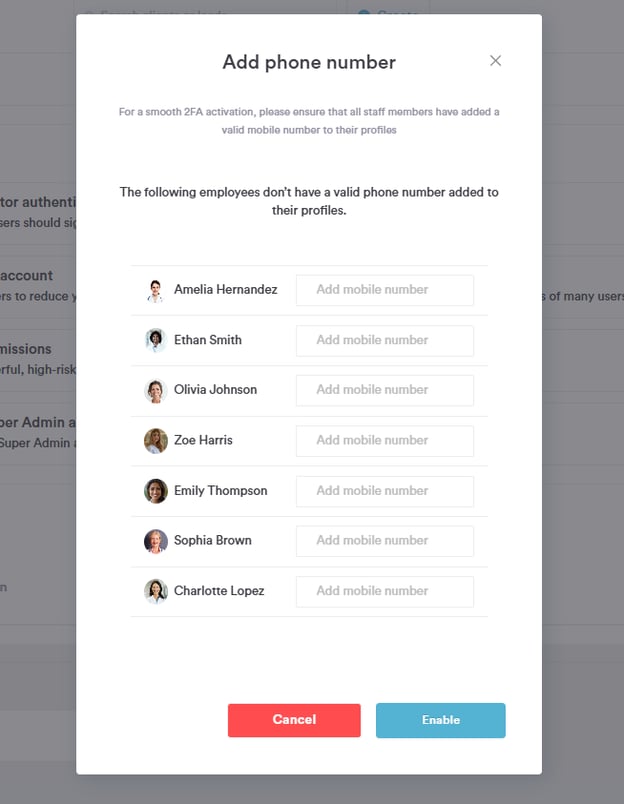
A pop-up window will appear, listing all staff members. You can enter each person’s phone number in the Add Mobile Number field to enable 2FA for them.
NOTE: If 2FA is enabled via SMS to a phone number, 1 Pabau credit will be charged for each verification code sent.
Step 6: Enable 2FA
Once you've added their phone number, click the "Enable" button to finalize.
By following these steps, you can easily enable 2FA in your Pabau account.
Choose Your 2FA Delivery Method (Email or SMS)
Once you have enabled Two-Factor Authentication (2FA) for your Pabau account as described above, you can view the option to choose how you receive your verification code at login.
This choice lets you select the primary delivery method that best suits your workflow and security preferences.
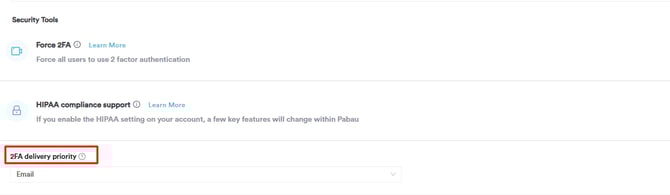
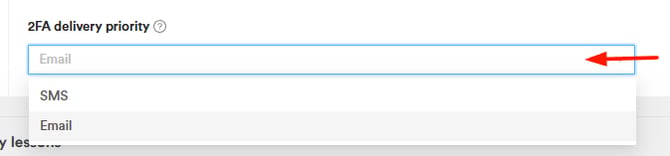
You’ll see a dropdown labeled “2FA Delivery priority” with two options:
-
SMS (Text Message) — Receive a one-time verification code sent to the mobile number associated with your account.
-
Email — Receive a verification code sent to your registered email address.
Click on the dropdown and select your preferred method (SMS or Email).
Ensure to click the 'Save Changes' button at the top right corner of the screen to finalize.
Sign in Another Way
When logging into your Pabau account, start by entering your email address and password as usual.
If two-factor authentication (2FA) has not been set up, you’ll then see the option Sign in another way on the next screen.
Clicking Sign in another way lets you continue logging in using an alternative sign-in method, without completing a 2FA step.
Key things to note
-
The Sign in another way option appears after you enter your email and password.
-
It is available only when 2FA is not enabled on your account.
-
Once 2FA is enabled, this option will no longer be shown and verification will always be required.
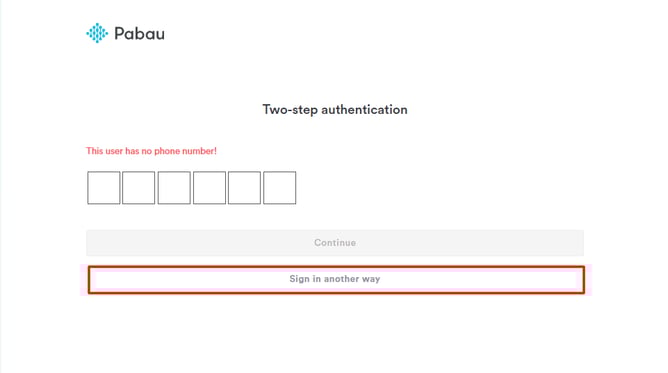
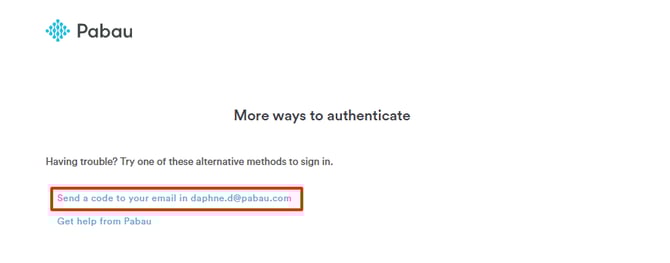
When you click Sign in another way, you’ll be given the option to send the verification code to your email instead.
Select this option, and a one-time code will be sent to your registered email address. Enter the code to complete signing in to your Pabau account.
For more guides, refer to related articles below, select additional guides, or use the search bar at the top of the page. These guides will help you get the most out of your Pabau account.
Additionally, to help you fully utilize and understand your Pabau account, we recommend exploring additional guides and resources offered at the Pabau Academy. It offers in-depth video tutorials and lessons, offering a holistic learning experience that can equip you with the essential skills for achieving success with Pabau.