
Step 1: Navigate to the Calendar
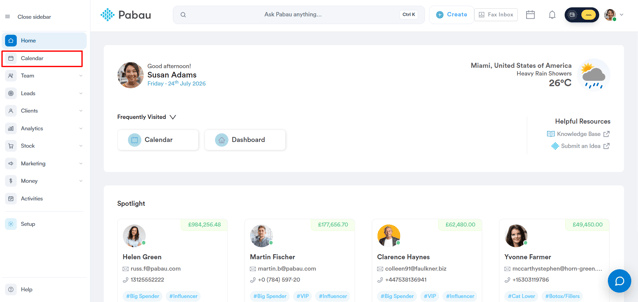
First, log in to your Pabau account, and in the left sidebar menu, click on Calendar.
Step 2: Access Clinic List
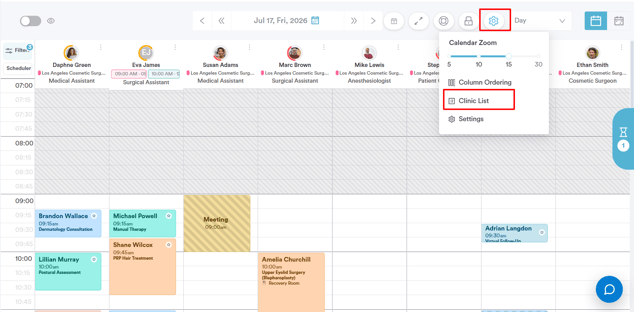
Click the cogwheel icon in the top-right corner of the calendar, then select "Clinic List" from the menu.
Step 3: Select a Date
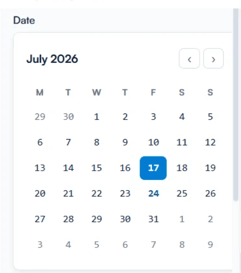
Once you open the ''Clinic List'', use the calendar picker on the left to choose the date you want to view, or use the arrows next to "Today" to move a day at a time.
Step 4: Apply Filters and Choose Columns
Use the Employees and Locations dropdowns to narrow the list to specific staff members or clinic locations.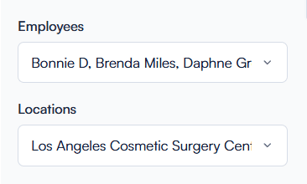
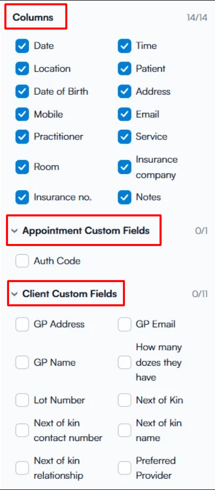
Under Columns, select which data fields to display, and expand Appointment Custom Fields and Client Custom Fields to include any additional fields configured for your clinic.
Step 5: Review the List
The panel displays the By Appointment Type and By Practitioner summary tables, along with the detailed booking table, based on your selections.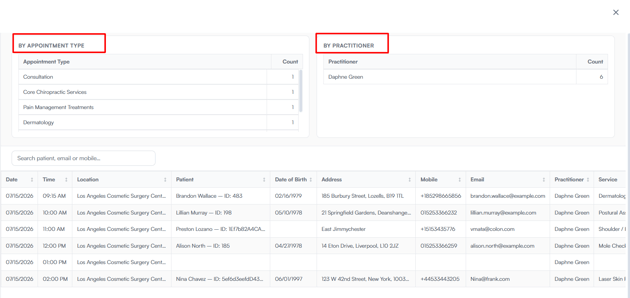
By following these steps, you'll be able to set up and generate a Clinic List tailored to your needs.
For more guides, refer to related articles below, select additional guides, or use the search bar at the top of the page. These guides will help you get the most out of your Pabau account.
Additionally, to help you fully utilize and understand your Pabau account, we recommend exploring additional guides and resources offered at the Pabau Academy. It offers in-depth video tutorials and lessons, offering a holistic learning experience that can equip you with the essential skills for achieving success with Pabau.