
The client journey consists of five steps that you go through when your clients arrive for their treatments, plus a checkout step.
The first three steps are completed by the client: checking personal details, filling out the medical history questionnaire, and signing any relevant consent forms for the booked services.
As the practitioner, you will then complete the final two steps: taking photos and creating a treatment note. Additionally, you can process a payment from within the journey.
NOTE: To use Pabau GO, ensure that you have a PIN code set up for your account, as you will need it at various points during the client journey and when logging in. To create a PIN code, follow the steps provided in this guide.
Step 1: Start the Client Journey (Pathway)
To initiate a client journey, open the app and navigate to the Journey tab. Here, you can view all the appointments scheduled for the day, and you can select a different day using the date picker at the top of the screen. The list displays clients' names, booked services, appointment statuses, and payment statuses.
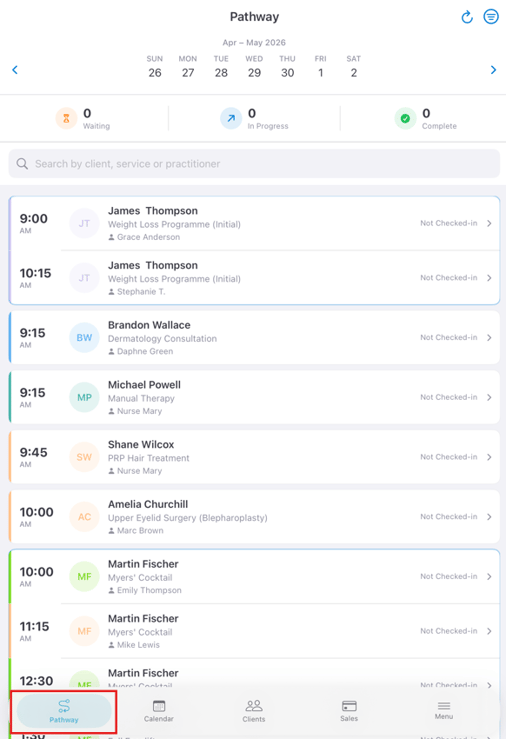
Step 2: Access the Appointment
Tap on one of the appointments then, slide to start the pathway.
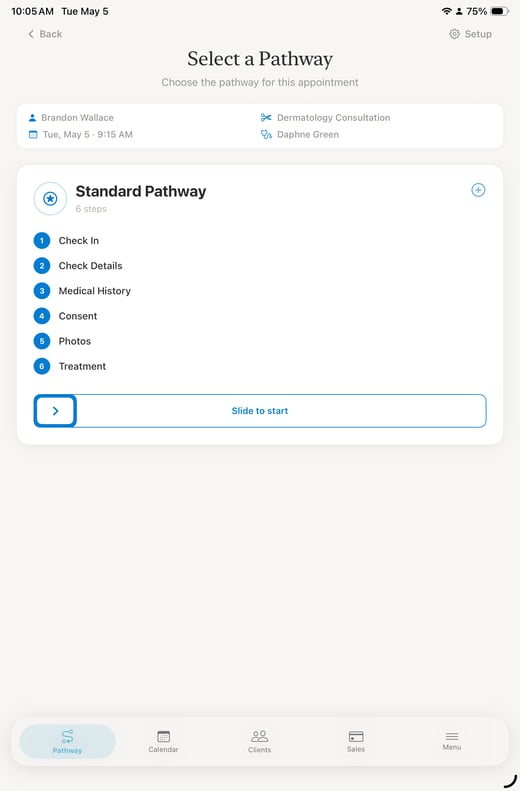
Step 3: Check In
The first step is checking the client in by selecting the consent form and treatment note that the client needs to sign.
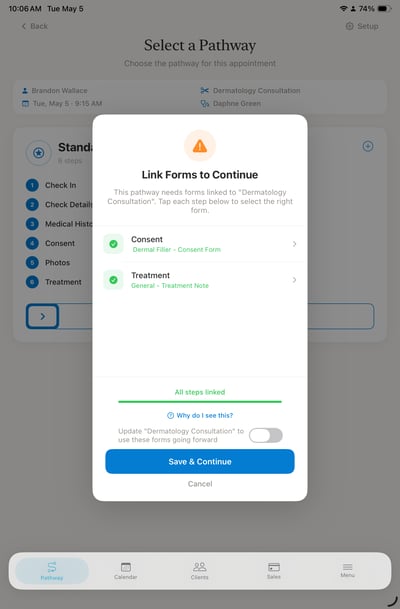
Then, click the "Save & Continue" button so you can hand over the iPad to the client.
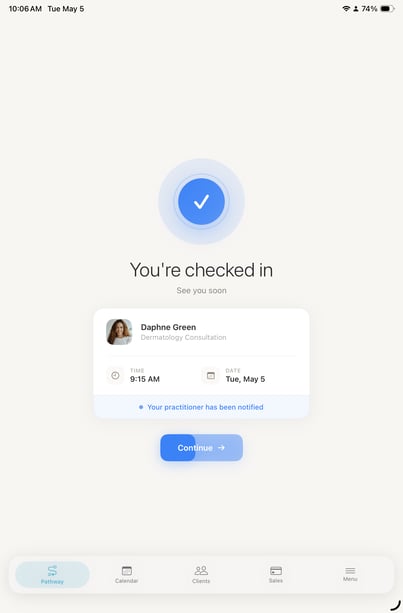
The client will need to fill out the following steps:
-
Check Details: Tapping this option allows the client to provide or update their personal details. Once they finish, they need to tap "Save" on the bottom of the screen. The details will be updated in the client card, and the status of this step will change to "Completed".
-
Medical History: This step will display the default medical history questionnaire you've set up in your account for the client to complete.
-
Patient Consent: The client can sign the consent form you've selected on this step.

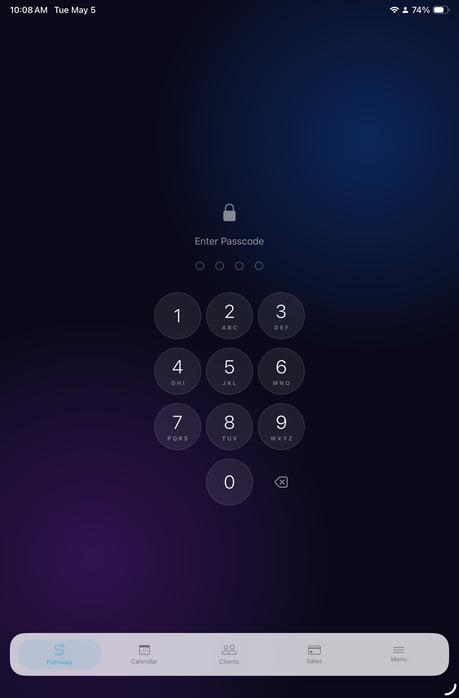
Now the client can hand you the tablet to continue the pathway. A passcode will be required to prevent clients from continuing to the next steps.
Step 3: Complete Staff Steps
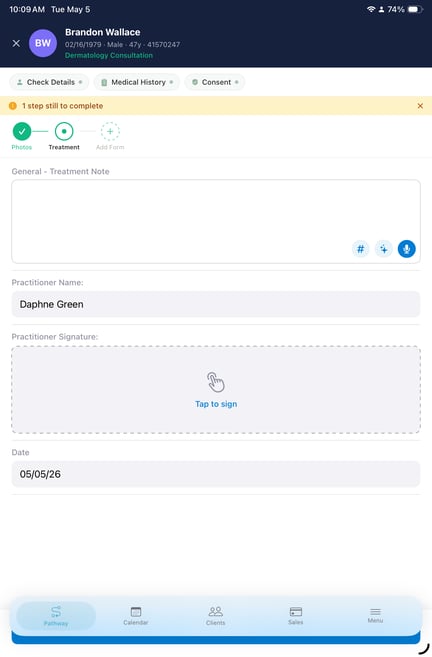
Now you can proceed on the next two steps of the journey: Photos and Treatment Note.
-
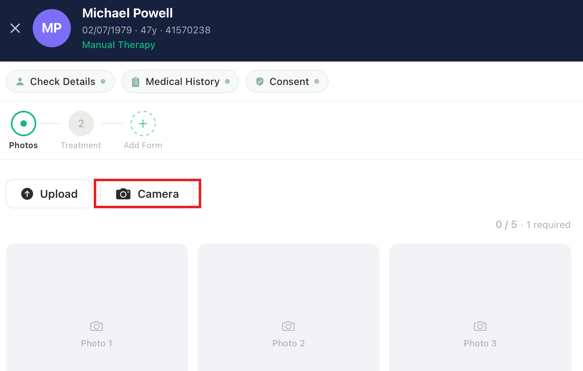
Photos: On this step, you have the option to take a photo by tapping on "Camera" which will activate the device camera, allowing you to take photos.
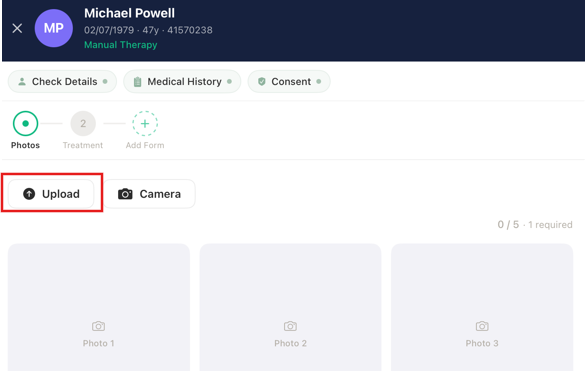
You also have the option to upload photos by tapping the "Upload" option which will open your gallery.
When finished, tap "Done" in the bottom to move to the next step.
If you don't want to upload any photos, you can just tap on the treatment note option to continue with the next step.
-
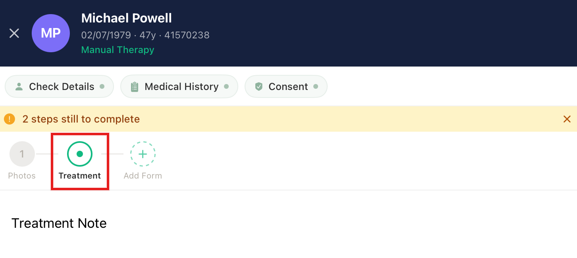
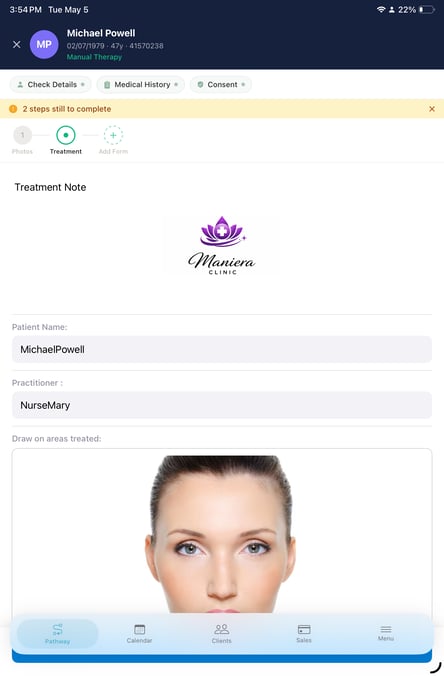
Treatment Notes: This step will display the treatment form linked in the check in process. Complete the form and save it.
Step 4: Add Additional Forms
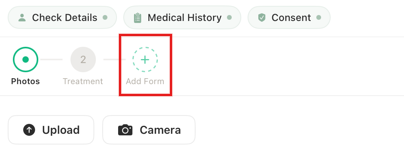
If you need to add more forms, tap the plus sign in the top right corner of the screen.
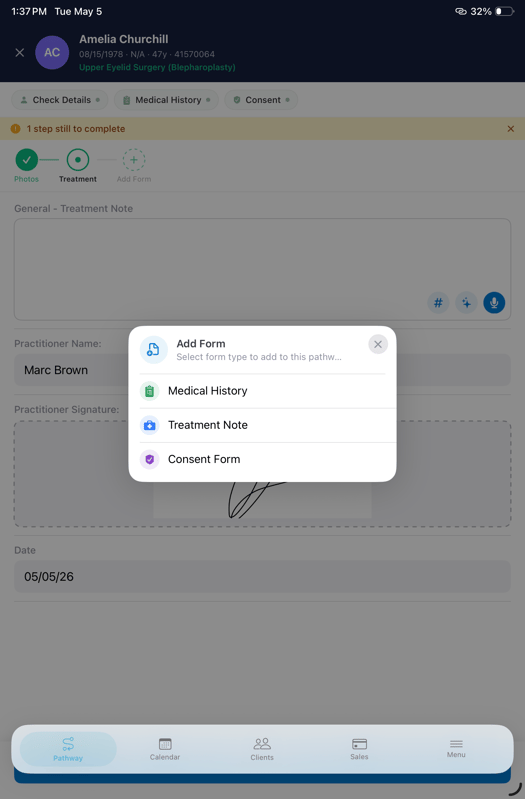
You will be prompted to select the form type, then you can select which form you'd like to add and fill out.
For more guides, refer to related articles below, select additional guides, or use the search bar at the top of the page. These guides will help you get the most out of your Pabau account.
Additionally, to help you fully utilize and understand your Pabau account, we recommend exploring additional guides and resources offered at the Pabau Academy. It offers in-depth video tutorials and lessons, offering a holistic learning experience that can equip you with the essential skills for achieving success with Pabau.