
When nobody can pick up, voicemail catches the call — and the message lands in your inbox like any other conversation. This article shows you where voicemails live and how to work through them.
Where Voicemails Appear
Voicemails show up in two places:
- The Calls tab of the conversation list — the row reads Voicemail with the message length.
- The caller’s conversation timeline — alongside their messages and previous calls.
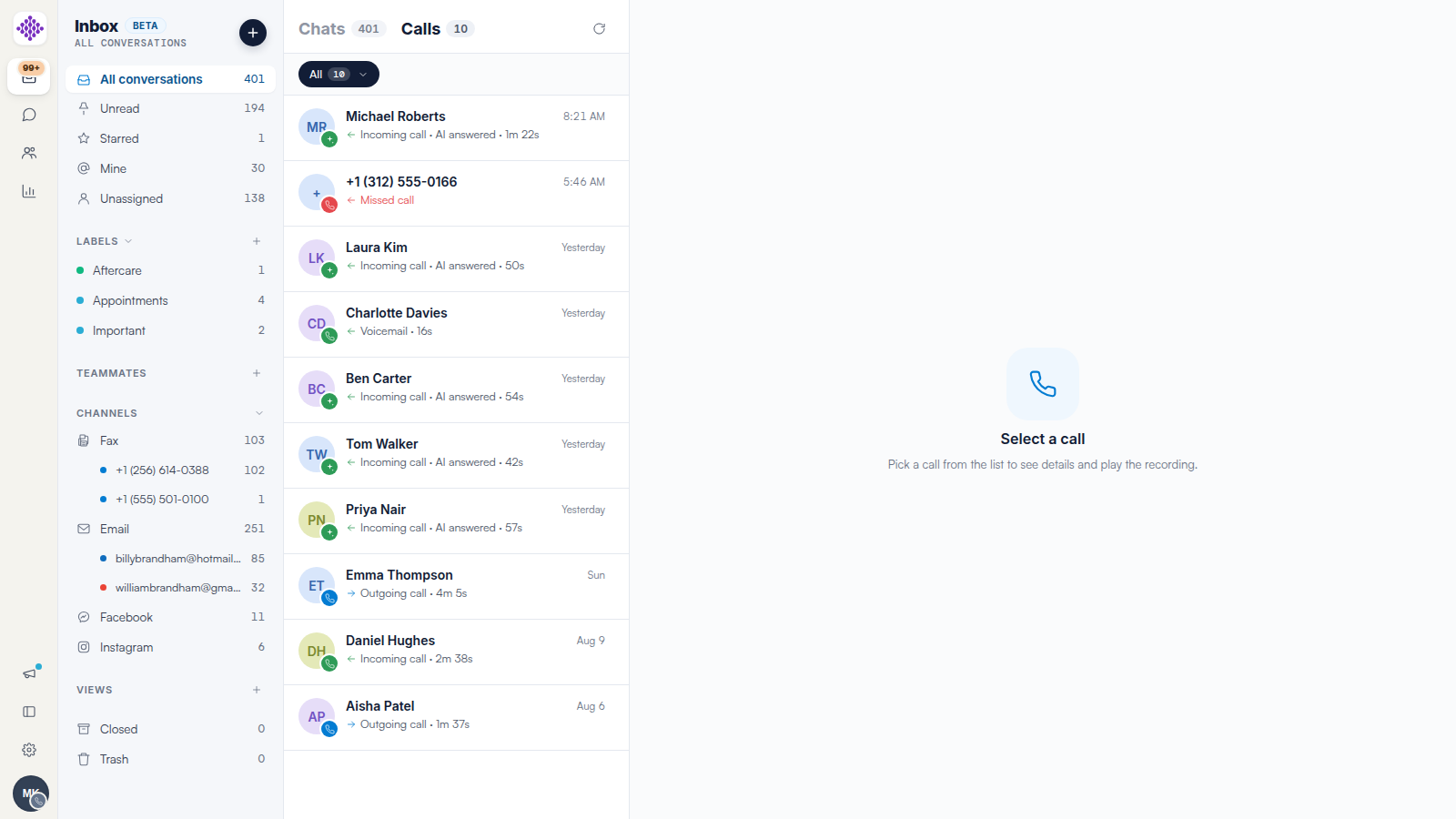
Listening to a Voicemail
Click the row to open it. The player gives you play/pause, a scrubber, playback speed and a download button — the same controls as call recordings.
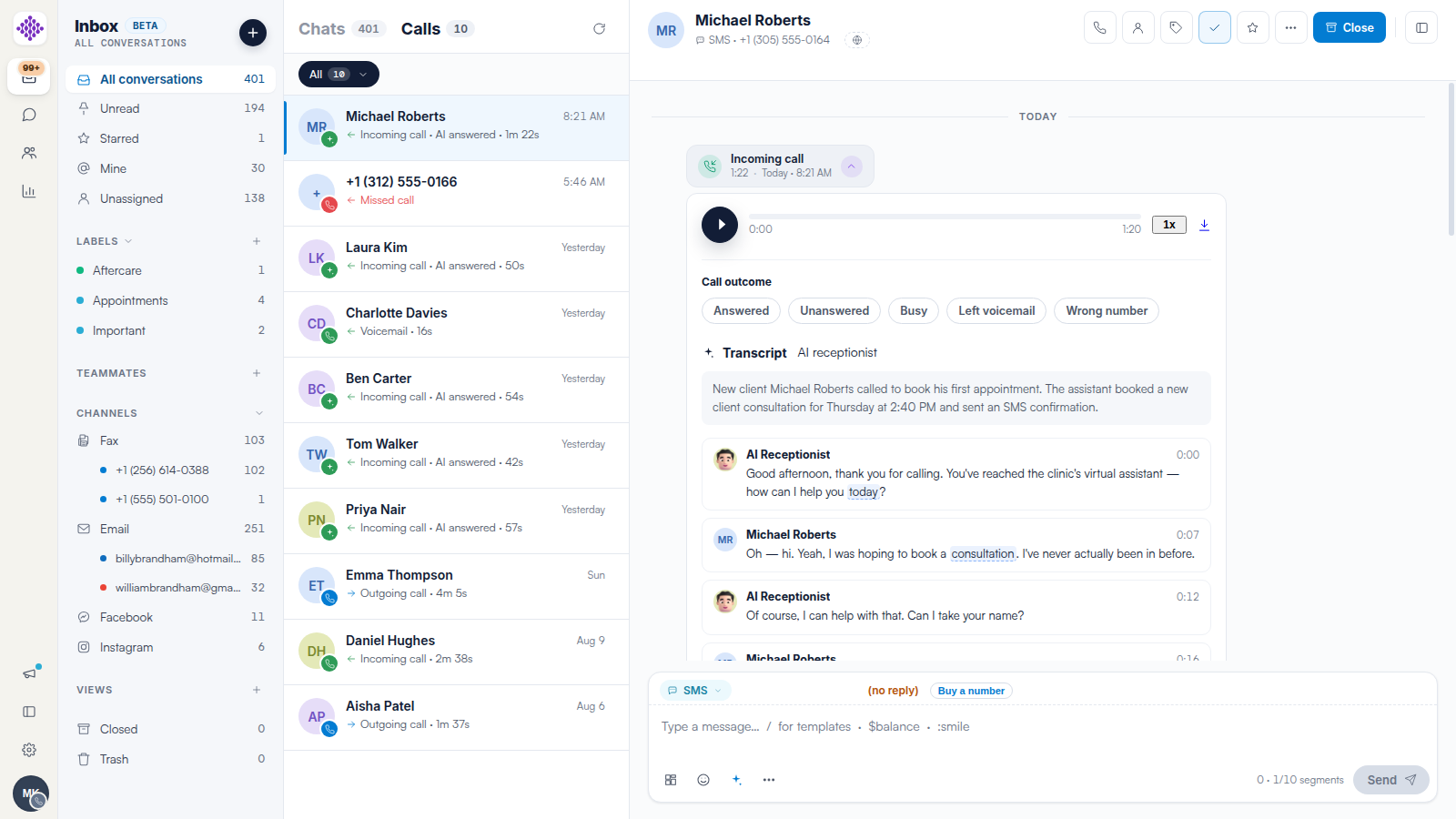
Answering a Voicemail
Because the voicemail sits inside the caller’s conversation, replying is one click: call them back with the phone button in the header, or reply by SMS from the composer — whichever suits the message.
When Voicemail Picks Up
Voicemail is part of your number’s call routing — typically after ring time runs out or outside opening hours. Configure it in Settings → Calls → Call Configurations; see our How to Set Up Call Routing for a Number article.
TIP: Create a view for Voicemail and Missed call so unanswered callers never sit unnoticed — see our How to Create Views in Engage article.
Related Articles
We suggest reading our The Calls Tab: Your Clinic’s Call Log in Engage article next.
For more guides, refer to related articles below, select additional guides, or use the search bar at the top of the page. These guides will help you get the most out of your Pabau account.
Additionally, to help you fully utilize and understand your Pabau account, we recommend exploring additional guides and resources offered at the Pabau Academy.