
This article covers managing points for an individual client. To set up the campaigns that award points automatically, see this article.
Step 1: Navigate to the client card
Start by logging in to your Pabau account. Then use the search bar at the top of the page and type at least three letters of the client's name - Pabau filters the results as you type.
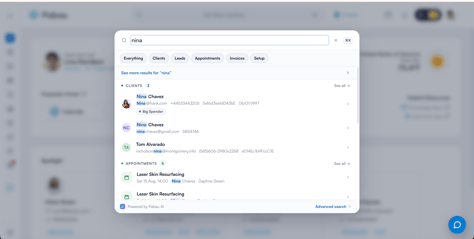
Click the client to open their card.
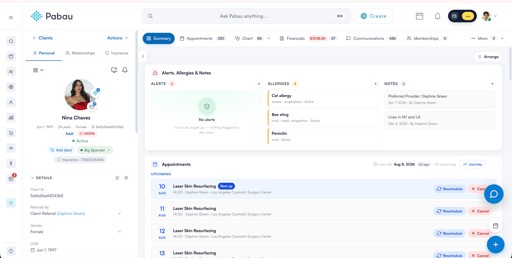
Step 2: Open Financials → Loyalty
From the tabs along the top of the card, click Financials, then the Loyalty subtab.
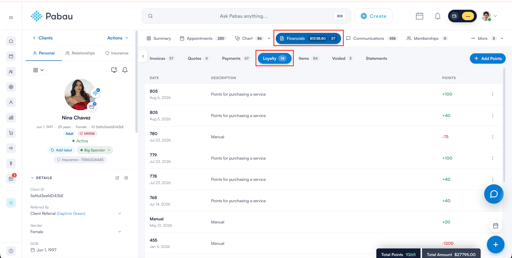
The counter next to Loyalty tells you how many entries the client has.
Step 3: What the ledger shows
Every points movement on the client is listed here, newest first:
- Date - the invoice number the points came from, with the date underneath. Entries you added by hand show Manual instead of an invoice number.
- Description - why the points were awarded (for example, Points for purchasing a service), or Manual for entries added from this screen.
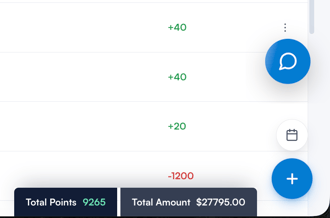
- Points -how many points the entry is worth. Points added show in green with a +; points removed show in red with a −.
At the bottom right you'll see two totals:
- Total Points - the client's current points balance.
- Total Amount - what that balance is worth in money, based on the point value set for your clinic.
Step 4: Add points manually
Useful for goodwill gestures, correcting a missed award, or running a promotion your campaigns don't cover.
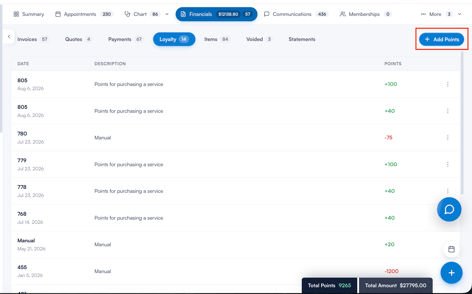
- Click + Add Points at the top right.
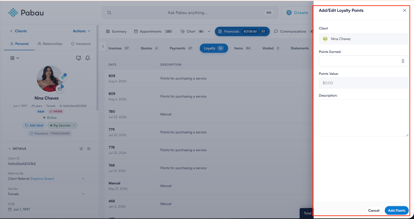
- The Add/Edit Loyalty Points panel opens with the client already filled in.
- Enter the number of points in Points Earned. Points Value fills in automatically - it's the cash value of those points and can't be edited here.
- Add a Description so your team knows later why the points were given.
- Click Add Points.
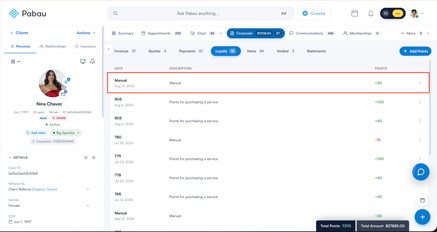
The entry appears at the top of the ledger as Manual, and the totals update straight away.
Step 5: Edit an existing entry
- Click the ⋮ menu on the right of the entry.
- Choose Edit.
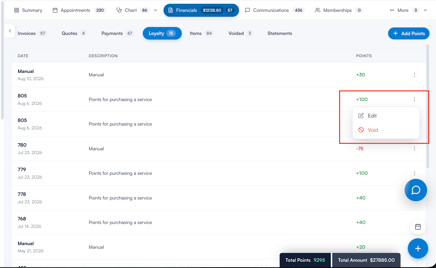
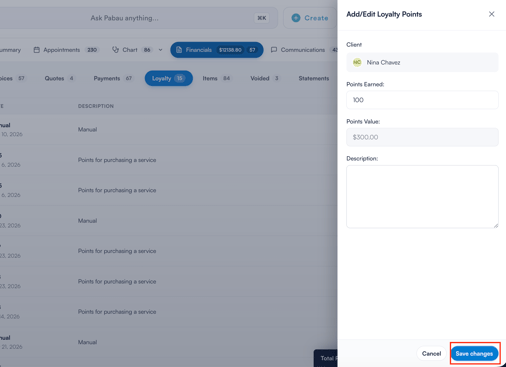
- The same panel opens with the current values filled in. Change the points or the description.
- Click Save changes.
Step 6: Void an entry
Voiding takes the points back off the client's balance — use it when points were awarded in error.
- Click the ⋮ menu on the entry and choose Void.
- A confirmation appears telling you exactly how many points will come off the balance.
- Click Void entry.
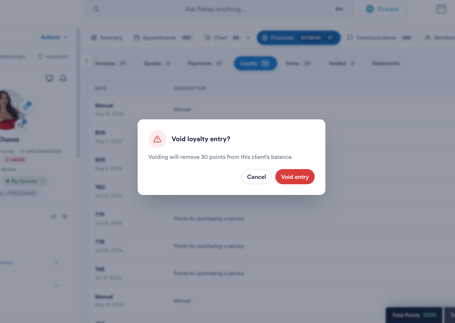
The balance and Total Amount update immediately.
Good to know
- Points awarded automatically by a loyalty campaign are tied to the invoice that earned them. Void that invoice and the points come off too.
- Loyalty also appears as a payment method at checkout, so clients can spend their balance against a sale.
- Adding, editing and voiding points here only affects this one client - it doesn't change your campaign rules.
For more guides, refer to related articles below, select additional guides, or use the search bar at the top of the page. These guides will help you get the most out of your Pabau account.
Additionally, to help you fully utilize and understand your Pabau account, we recommend exploring additional guides and resources offered at the Pabau Academy. It offers in-depth video tutorials and lessons, offering a holistic learning experience that can equip you with the essential skills for achieving success with Pabau.