
A deposit policy can apply to "All" bookings or to "Online Bookings" only.
When it's set to "All", a deposit is also requested for appointments you create manually in the Calendar. To collect deposits for online bookings only, set your deposit policy to apply to online bookings.
This setting can be found in two places, depending on how your deposits are set up. If you use a default deposit policy, update it in Setup. If you charge service-specific deposits that override the default, update each of those services.
Note: Deposits are collected on online bookings only when your account is integrated with Stripe. To read more about this, read this article.
Default Deposit Policy
Step 1: Access Deposit Settings
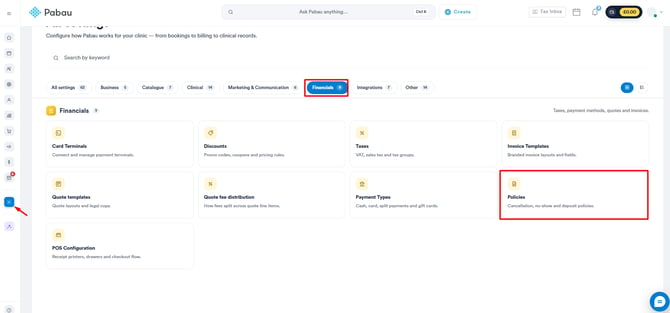
Log in to your Pabau account, click on "Setup" in the left sidebar menu, then select "Policies" under Financials.
Step 2: Configure Deposit Settings
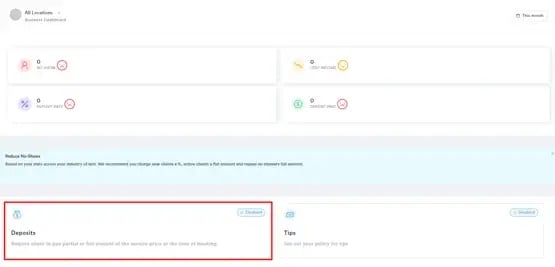
Click on "Deposits" to access deposit settings.
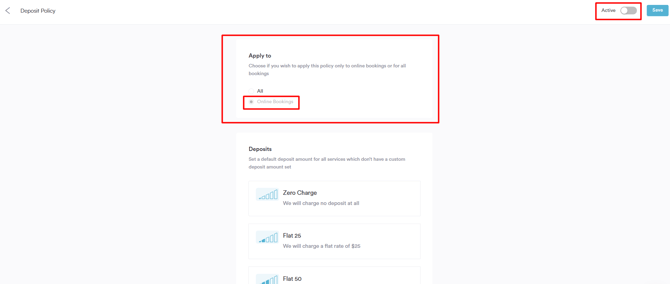
Choose "Online Bookings" instead of "All." This limits the deposit to online bookings, so no deposit is requested when you book manually in the Calendar. Toggle the policy to "Active" in the top right corner, then click "Save."
Service-Specific Deposits
If you've set deposits on individual services that override the default policy, update the "Apply to" setting on each of those services.
Step 1: Open the Service
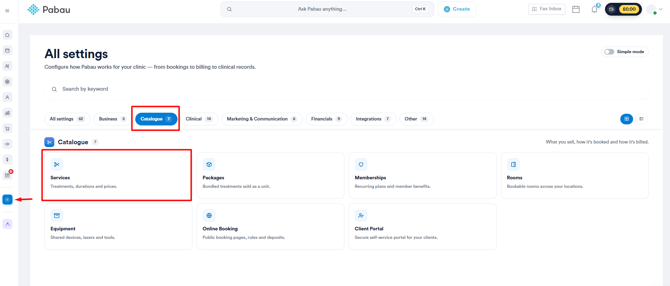
Click on "Setup" in the left sidebar menu, then click on "Services" under Catalogue. Search for the service you want to update and click on it to open the editing modal.
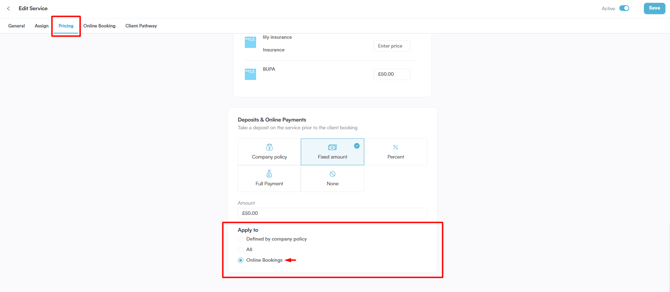
Step 2: Apply to Online Bookings
Open the "Pricing" tab and go to the "Deposits & Online Payments" section. In the "Apply to" field, select online bookings only, then click "Save" in the top right corner. Repeat this for each service that has its own deposit.
With these settings updated, deposits will only be requested for online bookings, and no deposit will be requested when you book a client manually or over the phone.
For more guides, refer to related articles below, select additional guides, or use the search bar at the top of the page. These guides will help you get the most out of your Pabau account.
Additionally, to help you fully utilize and understand your Pabau account, we recommend exploring additional guides and resources offered at the Pabau Academy. It offers in-depth video tutorials and lessons, offering a holistic learning experience that can equip you with the essential skills for achieving success with Pabau.