
Step 1: Launch the Pabau GO iOS App
Start by launching the Pabau GO app on your iOS device and logging into your Pabau account using your credentials.
.png?width=430&height=655&name=IMG_0327%20(1).png)
NOTE: You’ll be asked to enter your PIN code each time you launch the app. To learn how to create or locate your PIN code, check out this guide.
Step 2: Access the Calendar
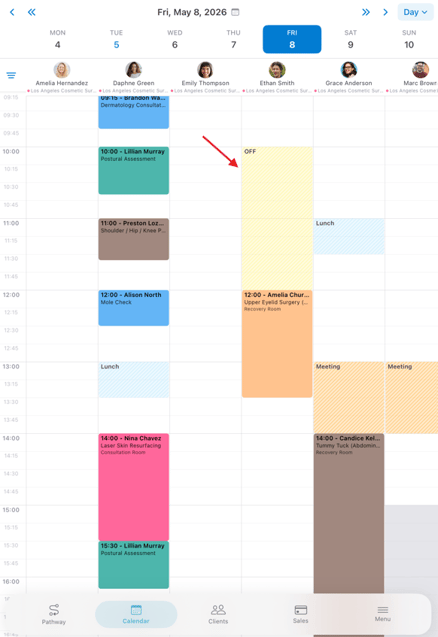
Tap Calendar at the bottom of the screen. In the calendar view, you will see your shifts and bookings for the day.

Step 3: Select Book Out
Once you locate the book out, tap on it to view the available actions.
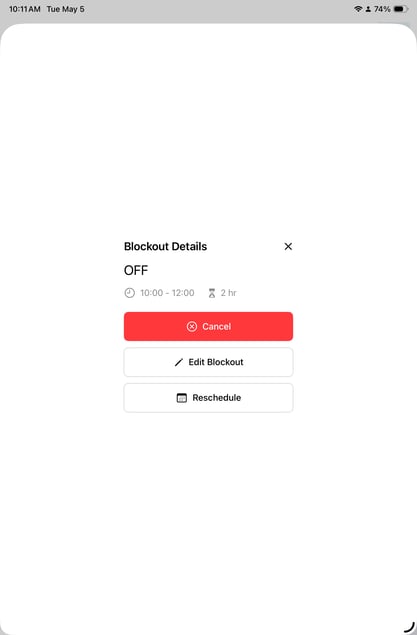
Here you will be able to edit the blockout, reschedule or cancel it. In this case, select the "Cancel" option.
Step 4: Delete Book Out
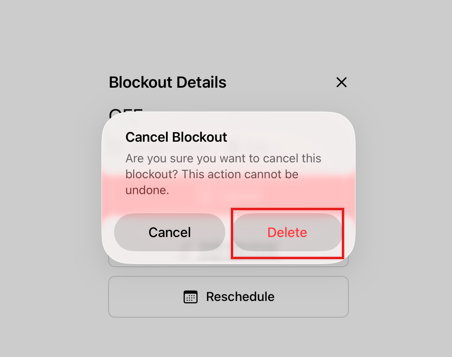
A prompt will appear where you will be asked to confirm if you want to delete this blockout. To finalize click the "Delete" option.
By following these steps, you can successfully delete a block out created in your Calendar.
📱Please note: The latest version of Pabau GO requires iOS 17 / iPadOS 17 or later. Devices that can't update to iOS 17 / iPadOS 17 won't be able to run it.
Download Pabau GO on your iPhone or iPad from the App Store.
For more guides, refer to related articles below, select additional guides, or use the search bar at the top of the page. These guides will help you get the most out of your Pabau account.
Additionally, to help you fully utilize and understand your Pabau account, we recommend exploring additional guides and resources offered at the Pabau Academy. It offers in-depth video tutorials and lessons, offering a holistic learning experience that can equip you with the essential skills for achieving success with Pabau.